

Create your first feed
This page walks you through building a feed from a connected account and saving it.
Before you start
Section titled “Before you start”📝 Note: You need at least one connected account first. If you haven’t connected one, see Connect your Instagram and TikTok accounts.
Open the feed builder
Section titled “Open the feed builder”Open the Feeds tab. If you don’t have any feeds yet, you’ll see a Create feed button in the center of the page.
Click Create feed. The feed builder opens with a settings panel on the left and a live preview on the right.
In the Source section, choose the platform you want to pull content from: Instagram or TikTok. Then, select the connected account to import posts from that platform.
Configure your feed
Section titled “Configure your feed”In the Feed info section, give your feed a name you’ll recognize later, like “IG-Feed” or “Homepage Reels.” A feed ID is generated automatically when you save, so you don’t need to set one.
💡Tip: If you plan to run more than one feed, name them by where they’ll go, such as “Homepage” or “Product page.” That way, you can pick the right one later in the theme editor.
The Feed Design section lets you control how your Instagram feed looks and behaves on the front end. Follow the steps below to customize your feed. Use these options to customize your feed’s appearance and functionality.
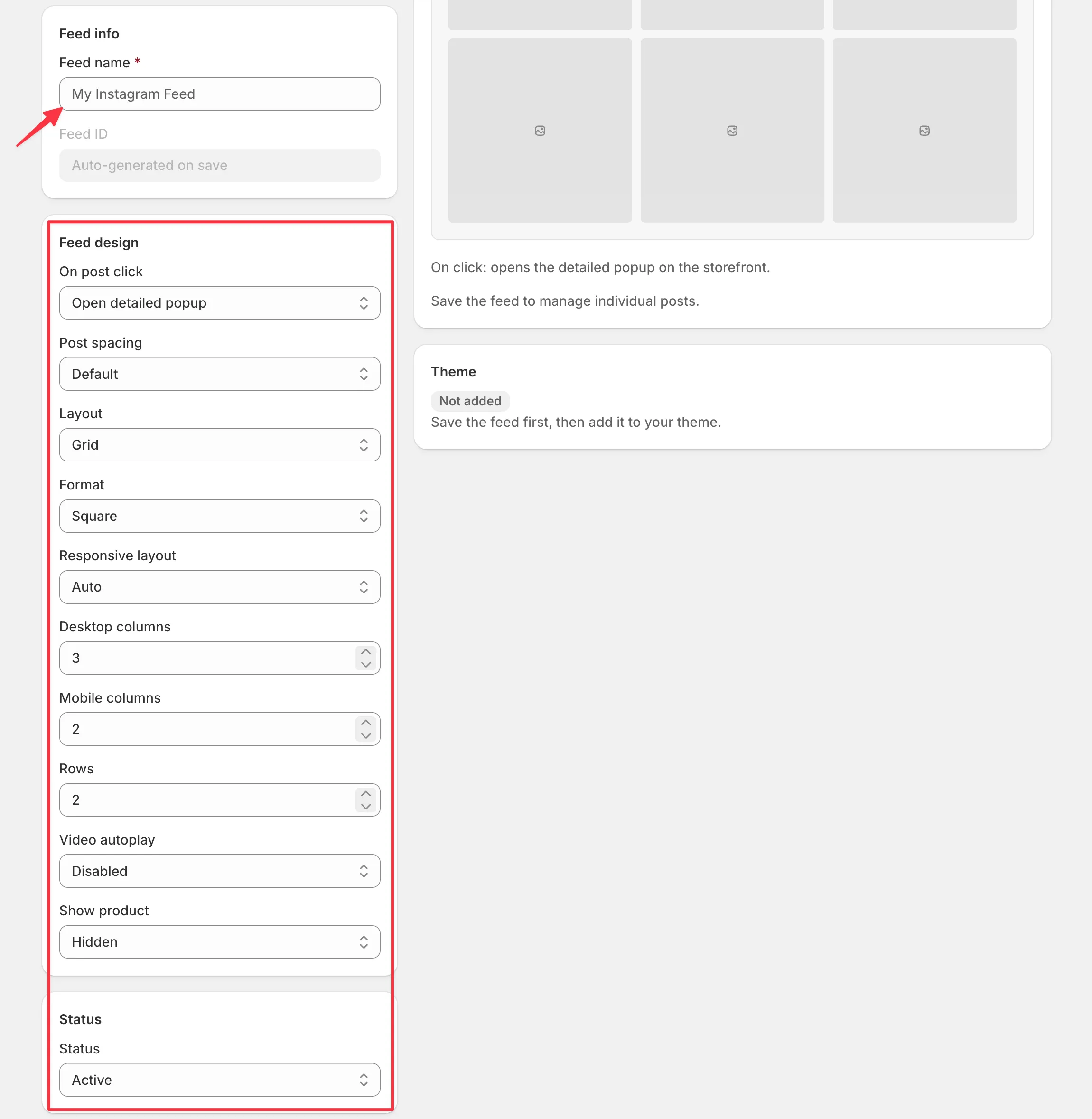
On post click
Section titled “On post click”Choose what happens when users click a post in the feed.
- Open Detailed Popup – Opens the post in a popup with additional details.
- Redirect to Product – Sends users to the linked product page.
- None – Disables click actions on posts.
Post spacing
Section titled “Post spacing”Choose the amount of space between posts in the feed.
- Default – Uses the standard spacing.
- Compact – Reduces the space between posts for a denser layout.
- Wide – Increases the space between posts for a cleaner appearance.
Layout
Section titled “Layout”Choose how posts are displayed in the feed.
- Grid – Displays posts in a structured grid layout.
- Slider – Shows posts in a scrollable carousel.
- Masonry – Arranges posts in a dynamic layout based on their original sizes.
Format
Section titled “Format”Choose the aspect ratio for feed posts.
- Square – Displays posts in a 1:1 ratio.
- Portrait – Displays posts in a vertical format.
- Landscape – Displays posts in a horizontal format.
Responsive layout
Section titled “Responsive layout”Choose how the feed adapts to different screen sizes.
- Auto – Automatically adjusts the layout for optimal display on all devices.
- Manual – Lets you define the number of columns for desktop and mobile devices.
Desktop columns
Section titled “Desktop columns”Set the number of posts displayed in each row on desktop devices.
Mobile columns
Section titled “Mobile columns”Set the number of posts displayed in each row on mobile devices.
Choose how many rows of posts to display in the feed.
Video autoplay
Section titled “Video autoplay”Choose how videos play in the feed.
- Auto – Videos play automatically when the feed loads.
- On Hover – Videos play when users hover over them.
- Disabled – Videos only play when users manually start them.
Show product
Section titled “Show product”Choose how product information is displayed in the feed.
- On Popup – Displays product details inside the post popup.
- Directly – Shows product information directly on the feed posts.
- Hidden – Hides all product information from the feed.
Status
Section titled “Status”Choose whether the feed is displayed on your website.
- Active – Enables the feed and makes it visible.
- Inactive – Disables the feed without deleting its settings.
Save your feed
Section titled “Save your feed”After configuring all settings:
- Review your feed design preferences.
- Click Save feed.
- The system will generate a Feed ID automatically.
Recommended Setup
Section titled “Recommended Setup”For a balanced, mobile-friendly layout, consider using:
- Layout: Grid
- Format: Square
- Desktop Columns: 3
- Mobile Columns: 2
- Rows: 2
- Video Autoplay: Disabled
- Status: Active
This configuration provides a clean and responsive Instagram feed experience for most websites.
If you want to add a TikTok feed, the following section can help you.
TikTok feed options
Section titled “TikTok feed options”TikTok feeds use a fixed Slider (Tiles 9:16) layout to match the native vertical video format, so the layout itself can’t be changed. The rest of the options are:
| Setting | Options | What it does |
|---|---|---|
| Layout | Slider (Tiles 9:16) | TikTok feeds always use the vertical slider. |
| On post click | Open detailed popup / Redirect to product / None | Sets what happens when a shopper clicks a tile. |
| Post spacing | Default / Wide / Compact | Controls the gap between tiles. |
| Rounded corners | On / Off | Rounds the corners of each tile. |
| Number of posts | Number | How many videos to show. The default is 30. |
What’s next
Section titled “What’s next”Make your feed look the way you want, then sync and manage your posts.