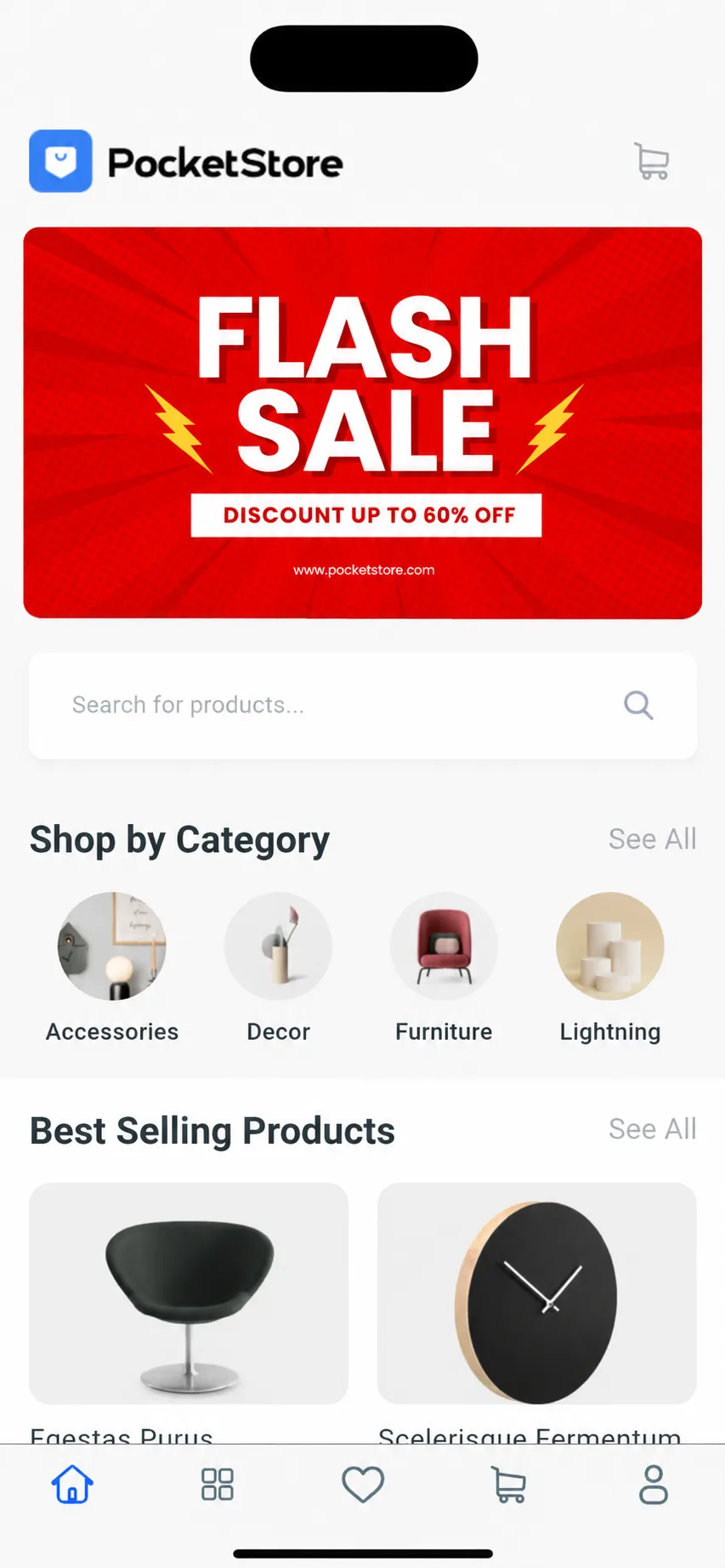

How To Add App Slider Image
Home screen banners are one of the first things customers see when they open your mobile app. They can be used to highlight promotions, featured products, seasonal campaigns, new arrivals, or direct customers to specific sections of your store.
With App Bridge, you can easily create and manage slider banners on your app from your WordPress dashboard. This guide will walk you through uploading a banner image, configuring click actions, and displaying it on your app’s home screen.
In your WordPress Admin, go to App Bridge > Sliders. Click Add New Slider.
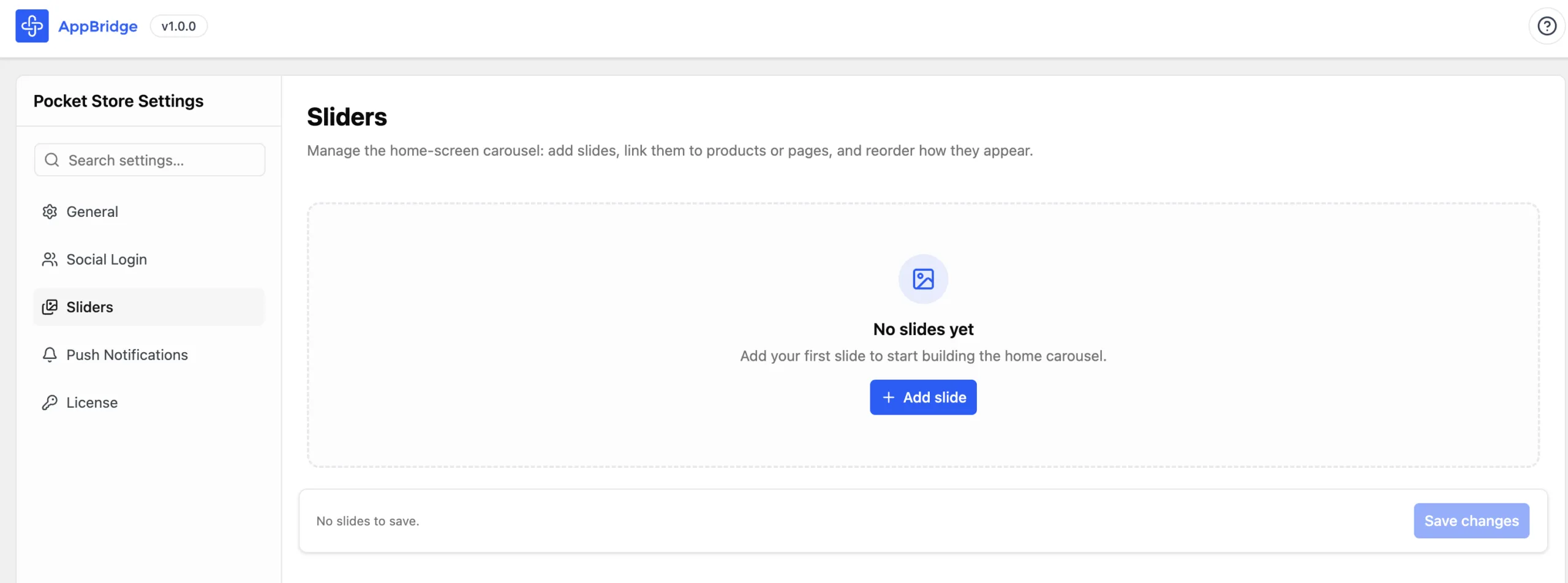
Upload a banner image. Recommended dimensions: 1600 X 900 pixels.
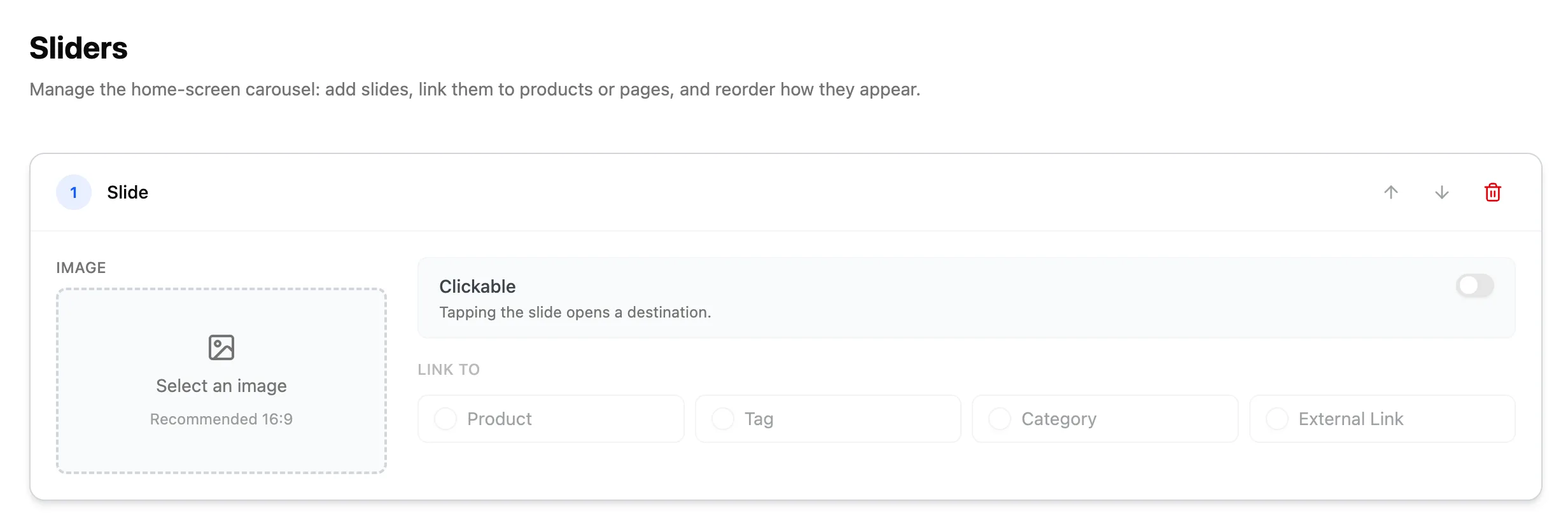
If you want the slider image to be clickable, turn the toggle to on. Set the Link Type to Product, Category, Tag, or URL.
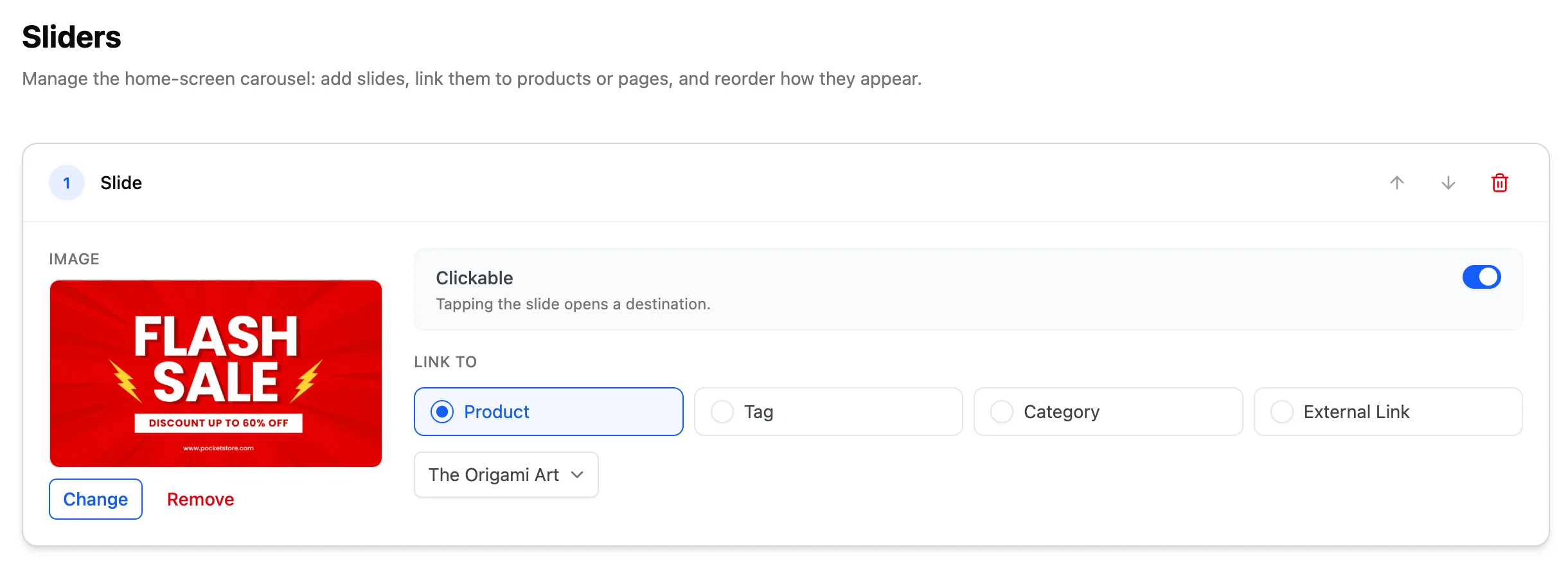
If you want to add more sliders, click on Add Slides. Else, please click on Save Changes.
The new banner image will now appear on your store app slider banner.