

Customize Automatic Notifications
Automatic notifications keep your customers informed about important updates without requiring any manual action from you.
PocketStore can automatically send notifications for events such as new orders, order status changes, successful payments, refunds, support replies, review responses, and account activity.
From the Events tab, you can control exactly which notifications are sent and customize the message your customers receive. Each notification includes editable titles and message content, along with dynamic variables that automatically insert information such as order numbers, refund amounts, product names, and more.
This guide will show you how to enable or disable automatic notifications, customize their wording, and use variables to create more personalized messages for your customers.
Before you start, ensure that OneSignal is connected to your store.
Events Settings
Section titled “Events Settings”In WordPress, go to App Bridge > Push Notifications and open the Events tab. Notifications are grouped into collapsible sections by category (Order, Payment, Refund, Support, Review, Account). Each notification is a card you control.
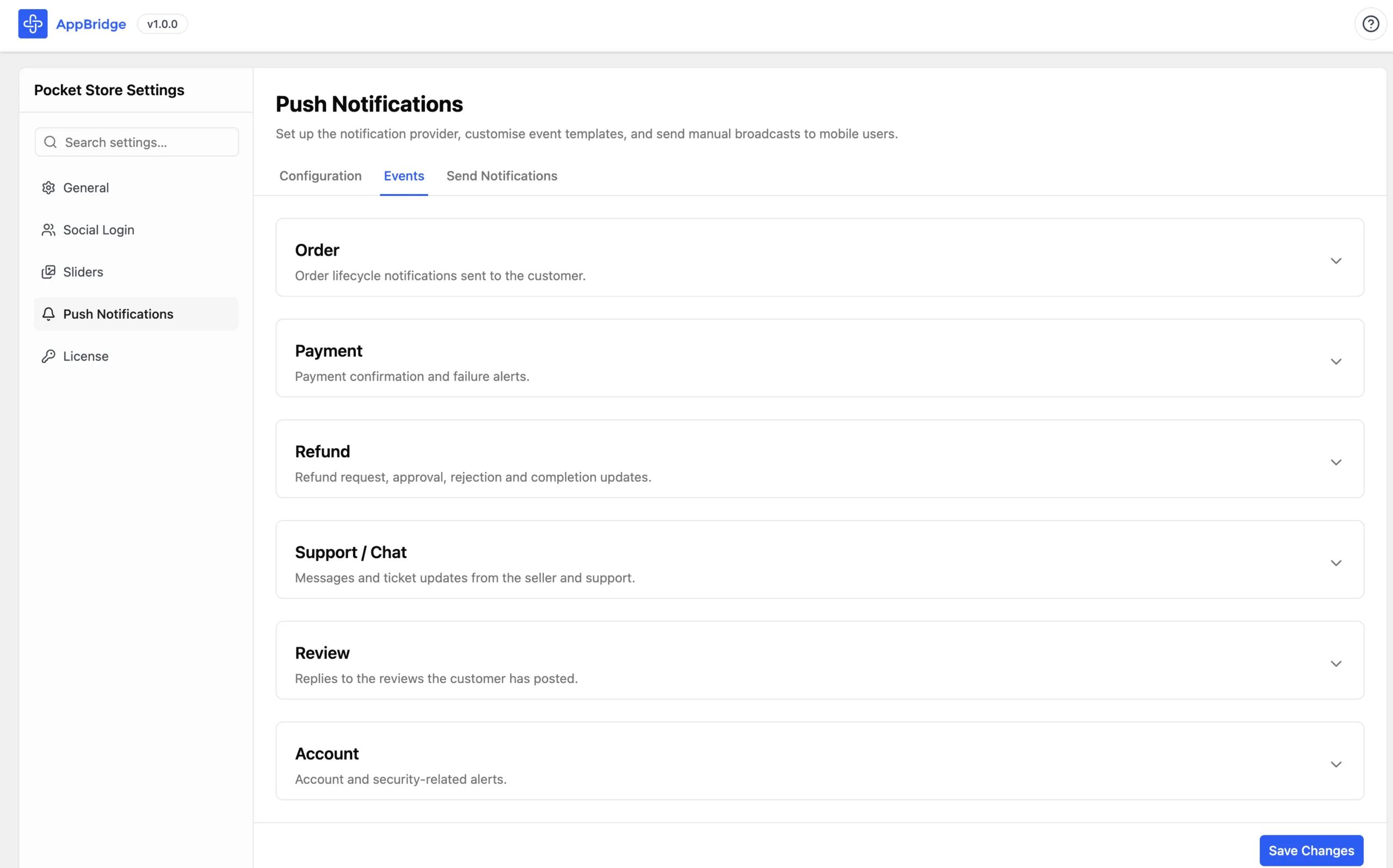
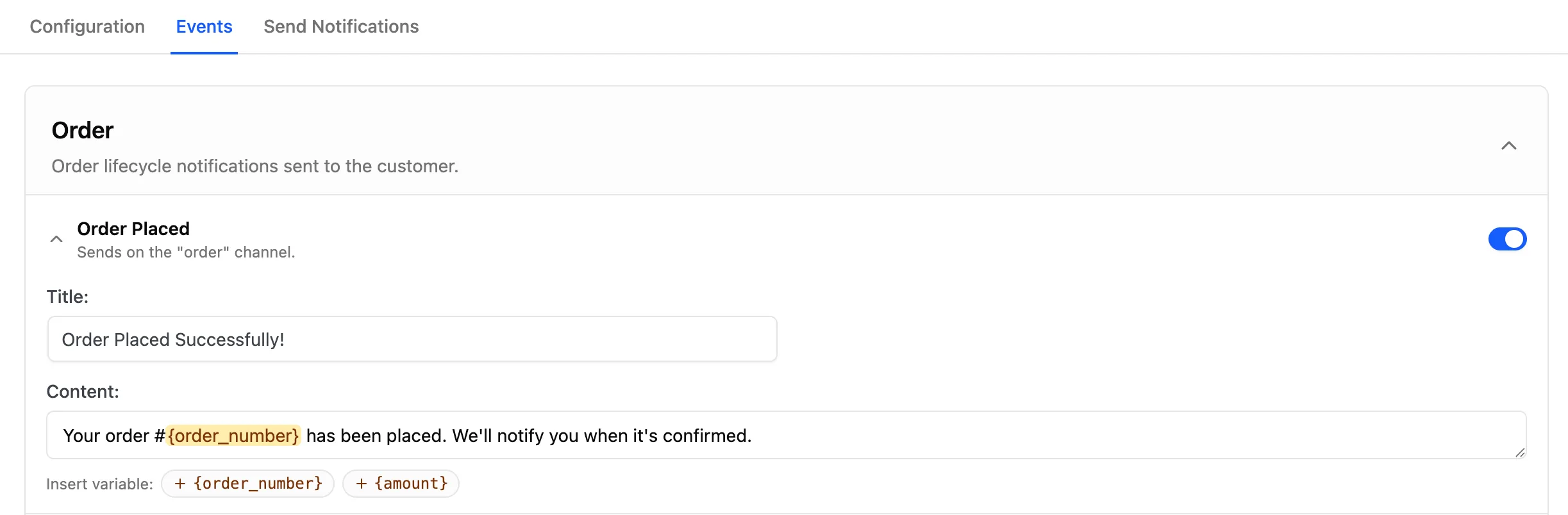
Every card has the same four controls:
- Toggle: turns this notification on or off.
- Title: The bold line shoppers see. Edit it, or leave it blank to use the default.
- Content: the message text. You can include variables.
- Variables: lists the variables you’re allowed to use in that specific notification.
Using Variables
Section titled “Using Variables”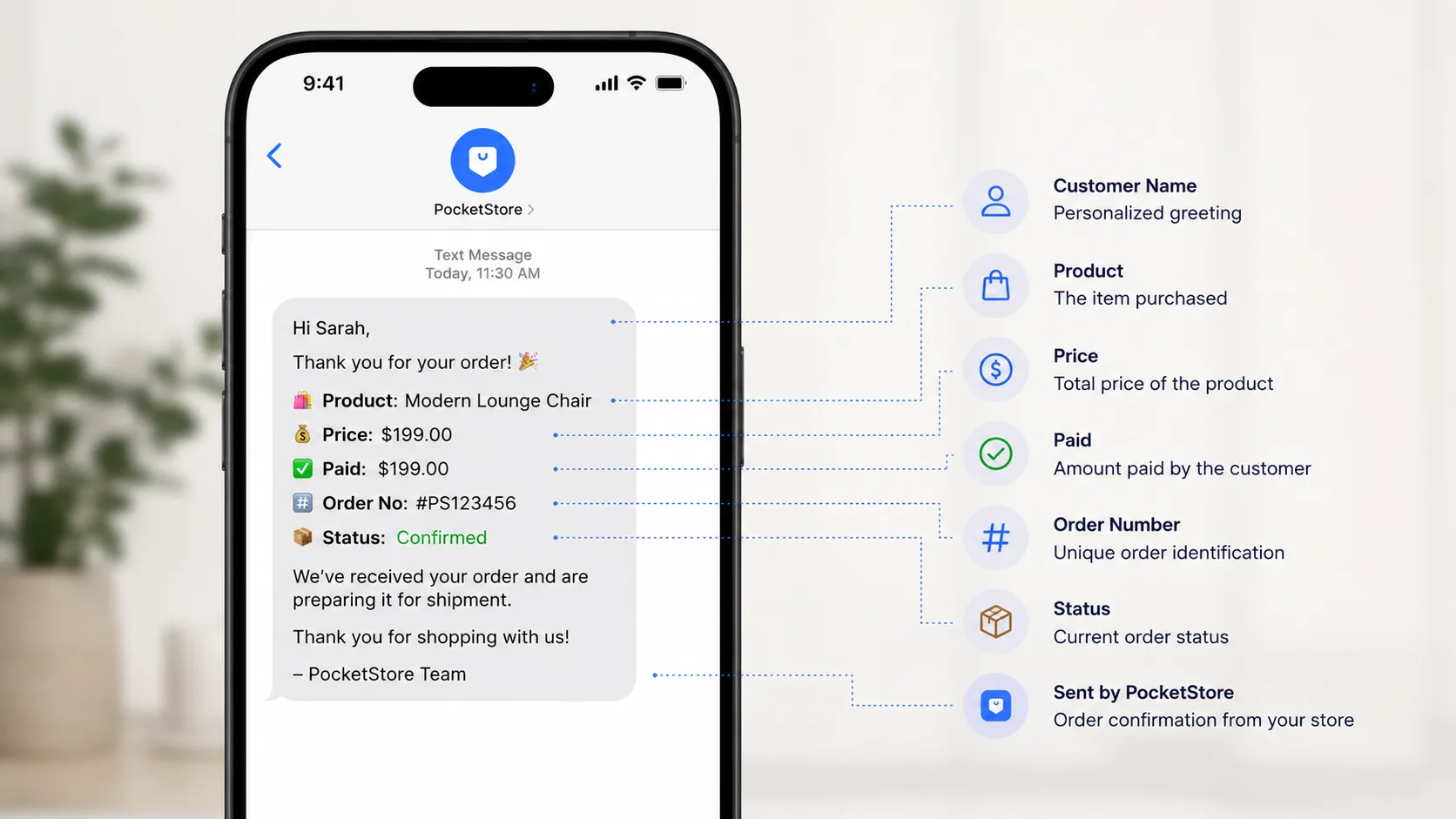
Variables allow PocketStore to automatically insert customer-specific information into a notification at the moment it is sent.
Instead of sending the exact same message to every customer, variables make notifications feel more relevant and personalized.
For example, if a customer places order #1042, you probably don’t want every notification to say: Your order has been shipped.
Instead, you can use the {order_number} variable:
Your order {order_number} has been shipped.
When the notification is delivered, PocketStore automatically replaces the variable with the actual order number: Your order #1042 has been shipped.
Different notifications support different variables depending on the information available at that stage of the customer journey.
For example, payment notifications may support both {order_number} and {amount}, while account notifications may only support {site_name}.
Always refer to the Variables Hint shown on the notification card. Variables that are not listed there are not supported and will appear as plain text in the final notification.
Customizing Notification Content
Section titled “Customizing Notification Content”Every store communicates differently. Some brands prefer short, transactional messages, while others use a more conversational tone.
PocketStore allows you to customize both the title and body of every automatic notification so that your messaging reflects your brand.
For example, the default notification might read:
Title: Order Processing
Body: Your order {order_number} is now being processed.
You could customize it to:
Title: We’re Preparing Your Order
Body: Great news! Our team has started preparing order {order_number}. We’ll notify you again when it’s on the way.
This flexibility allows you to create a more engaging customer experience while still benefiting from fully automated notifications.
All Notifications Available
Section titled “All Notifications Available”These are every automatic notification your app can send, with the variables available for each.
| Category | Notification | When it sends | Variables you can use |
|---|---|---|---|
| Order | Order placed | A shopper places a new order | {order_number} |
| Order | Order confirmed | An order is confirmed | {order_number} |
| Order | Order processing | An order moves to processing | {order_number} |
| Order | Order delivered | An order is marked delivered | {order_number} |
| Order | Order cancelled | An order is cancelled | {order_number} |
| Order | Order failed | An order fails to go through | {order_number} |
| Order | Order on hold | An order is put on hold | {order_number} |
| Payment | Payment success | A payment is completed | {order_number}, {amount} |
| Payment | Payment failed | A payment does not go through | {order_number} |
| Refund | Refund requested | A shopper requests a refund | {order_number} |
| Refund | Refund approved | A refund is approved | {order_number}, {amount} |
| Refund | Refund rejected | A refund request is rejected | {order_number} |
| Refund | Refund completed | A refund is paid out | {amount} |
| Support | Support message received | A shopper gets a reply in support chat | {order_number} |
| Support | Support ticket closed | A support ticket is closed | {ticket_id} |
| Review | Review reply received | A shopper’s product review gets a reply | {product_name} |
| Account | Account registered | A shopper creates a new account | {site_name} |
| Account | Account password changed | A shopper changes their password | {site_name} |
| Account | Account password reset | A shopper resets their password | {site_name} |
Edit the messaging for any notification and toggle off the ones you don’t want.