

Configure Facebook Login
This guide walks you through creating a Facebook Developer app and collecting the App ID (a unique number Facebook assigns to your app) and Client Token (a security key Facebook uses to verify your app) you need for the Build Request Form.
What You Will Need
Section titled “What You Will Need”- A Facebook account with admin access to your business
- Your store’s privacy policy URL, published and publicly accessible
- Your app icon file
Why Facebook Login Is Needed
Section titled “Why Facebook Login Is Needed”Facebook Login lets shoppers sign in to your mobile app with their Facebook account. This removes the need for shoppers to fill out a registration form.
You collect two values from the Facebook Developer portal: an App ID and a Client Token.
Both go into the Build Request Form. The StorePulse team handles the rest of the configuration.
How To Set Up Facebook Login
Section titled “How To Set Up Facebook Login”Visit to developers.facebook.com and log in with the Facebook account that has access to your business.
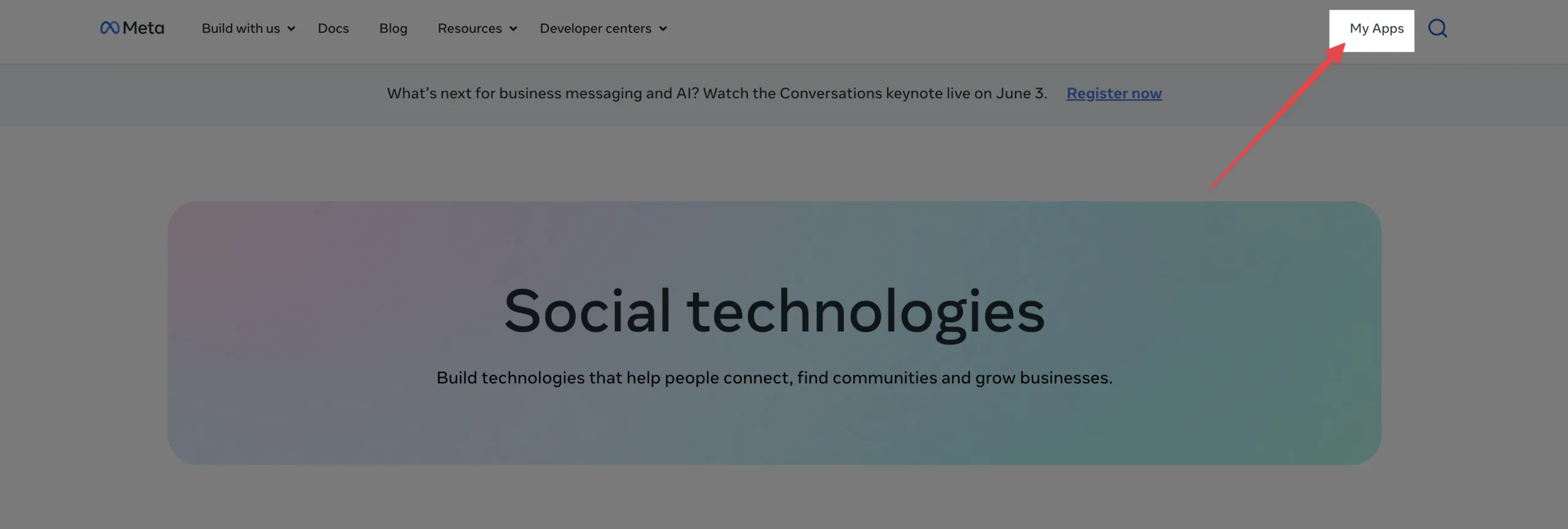
Now, click on My Apps
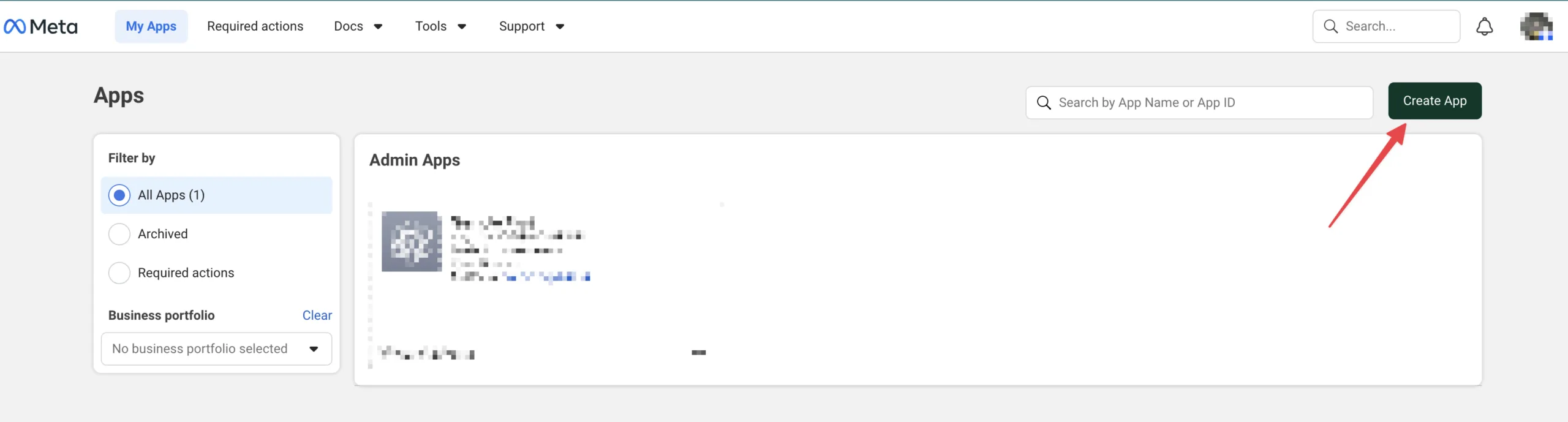
Now, in the developer portal, click on Create App.
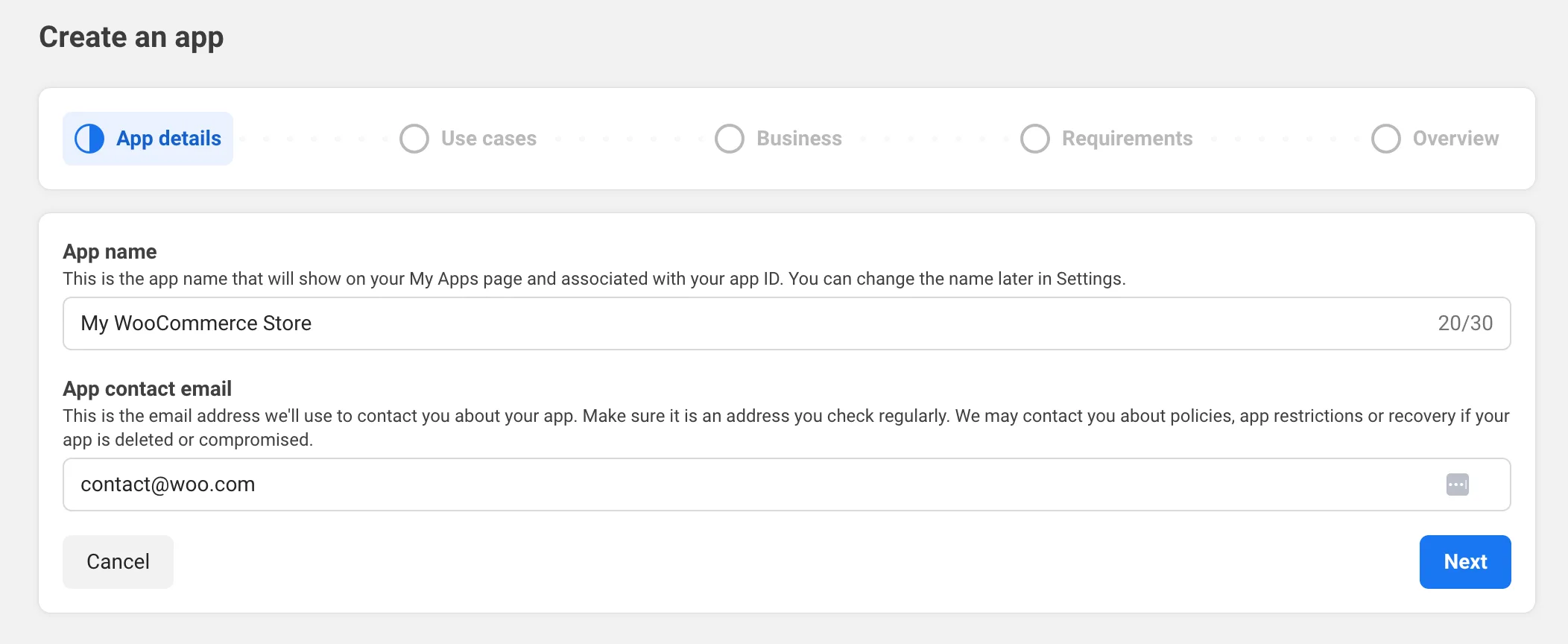
Now, give your app a name and a contact email in the form.
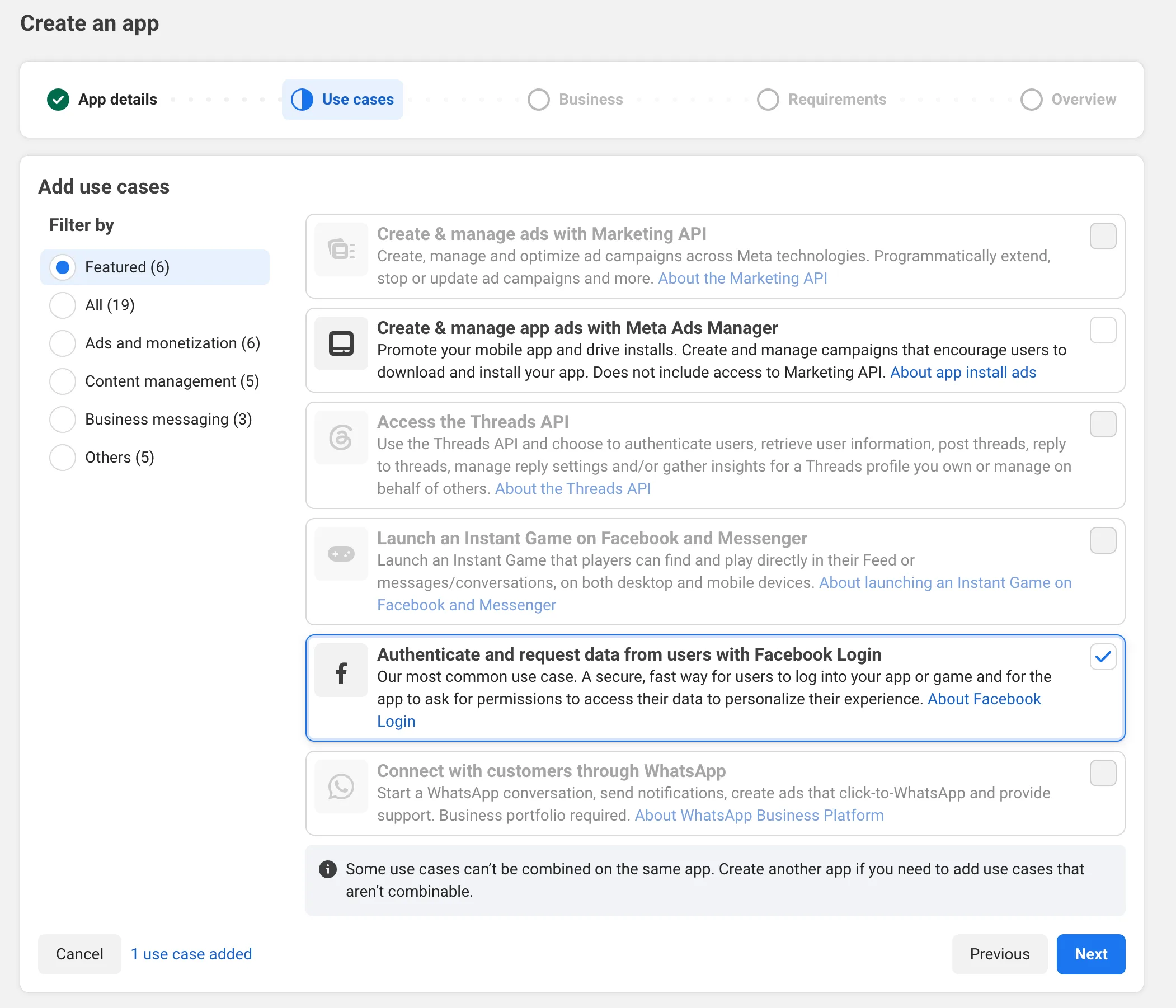
Select the checkbox on ‘Authenticate and request data from users with Facebook Login‘ and click Next.
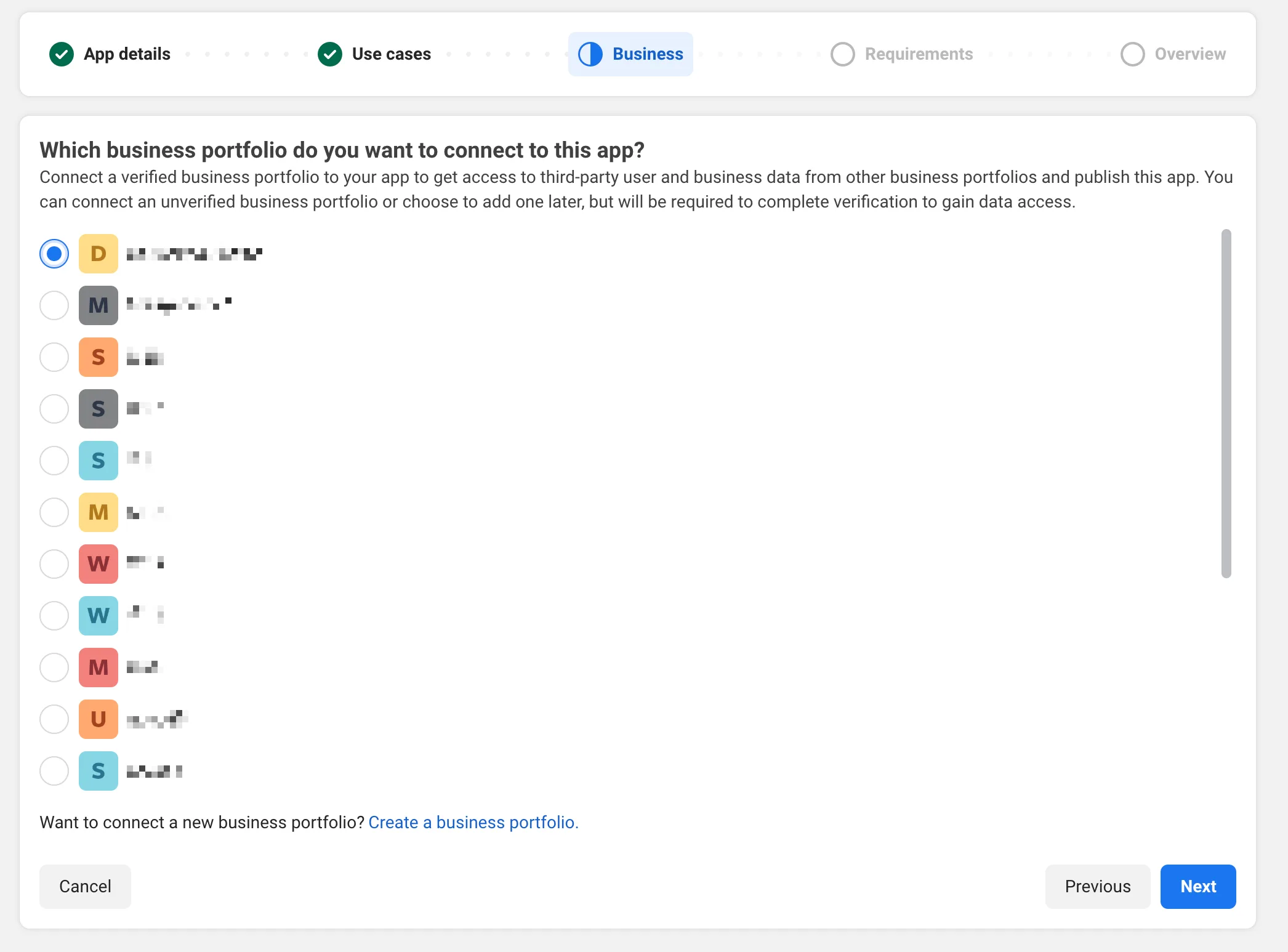
Select the business portfolio (business manager) from the list or create a new one.
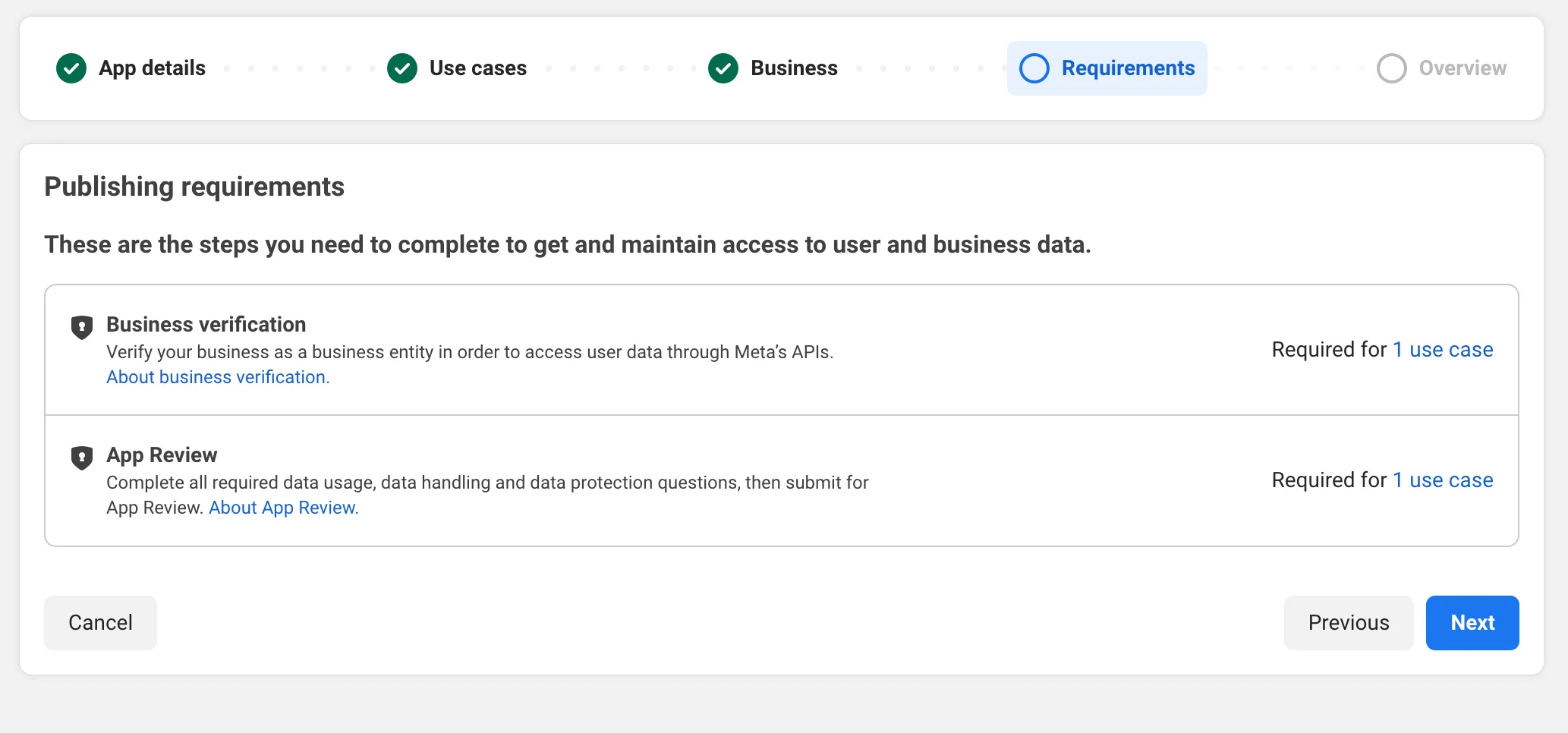
Read the publishing requirements before publishing the app.
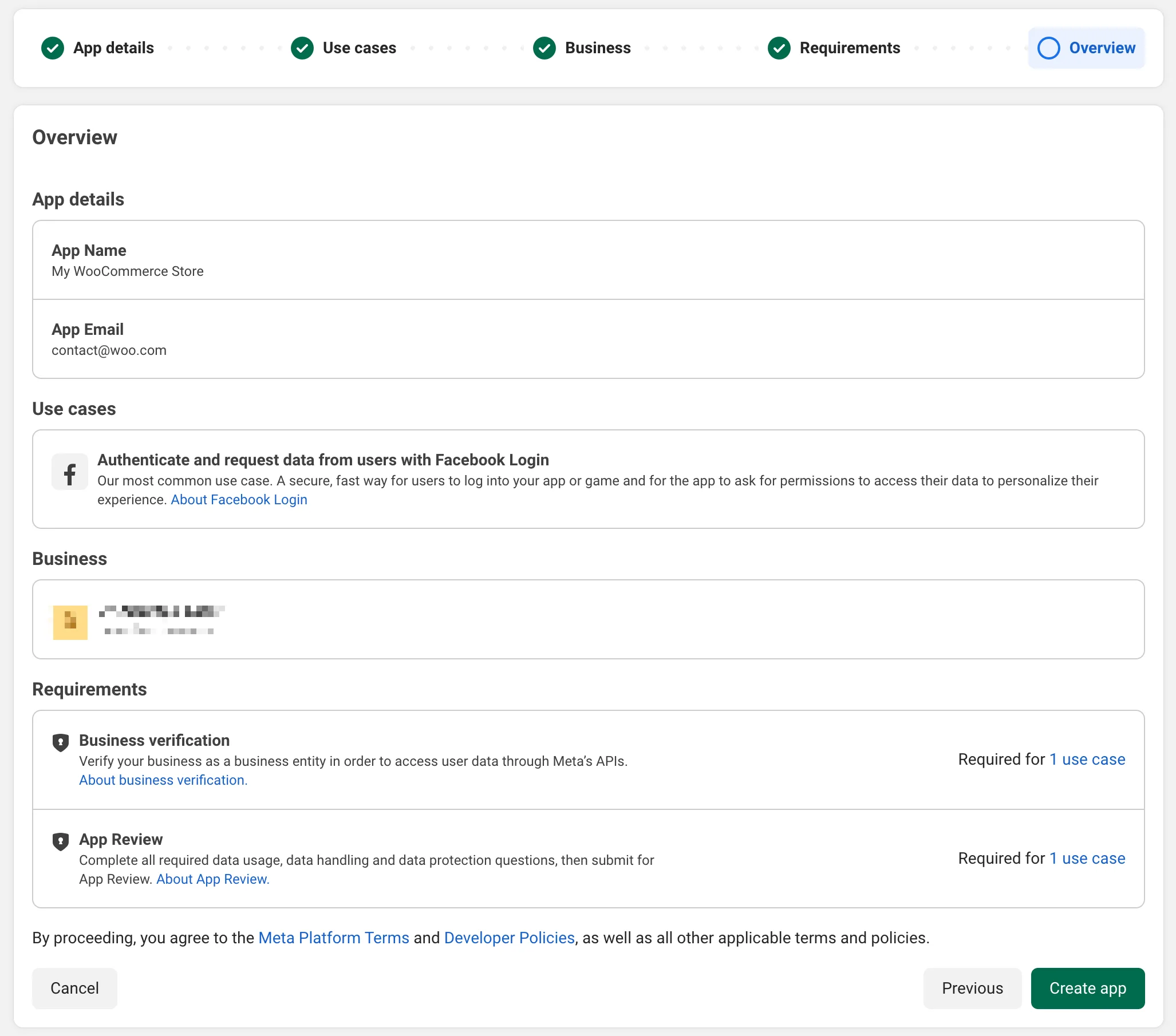
Finally, click on Create App from the Overview tab. This will prompt you to enter your Facebook password.
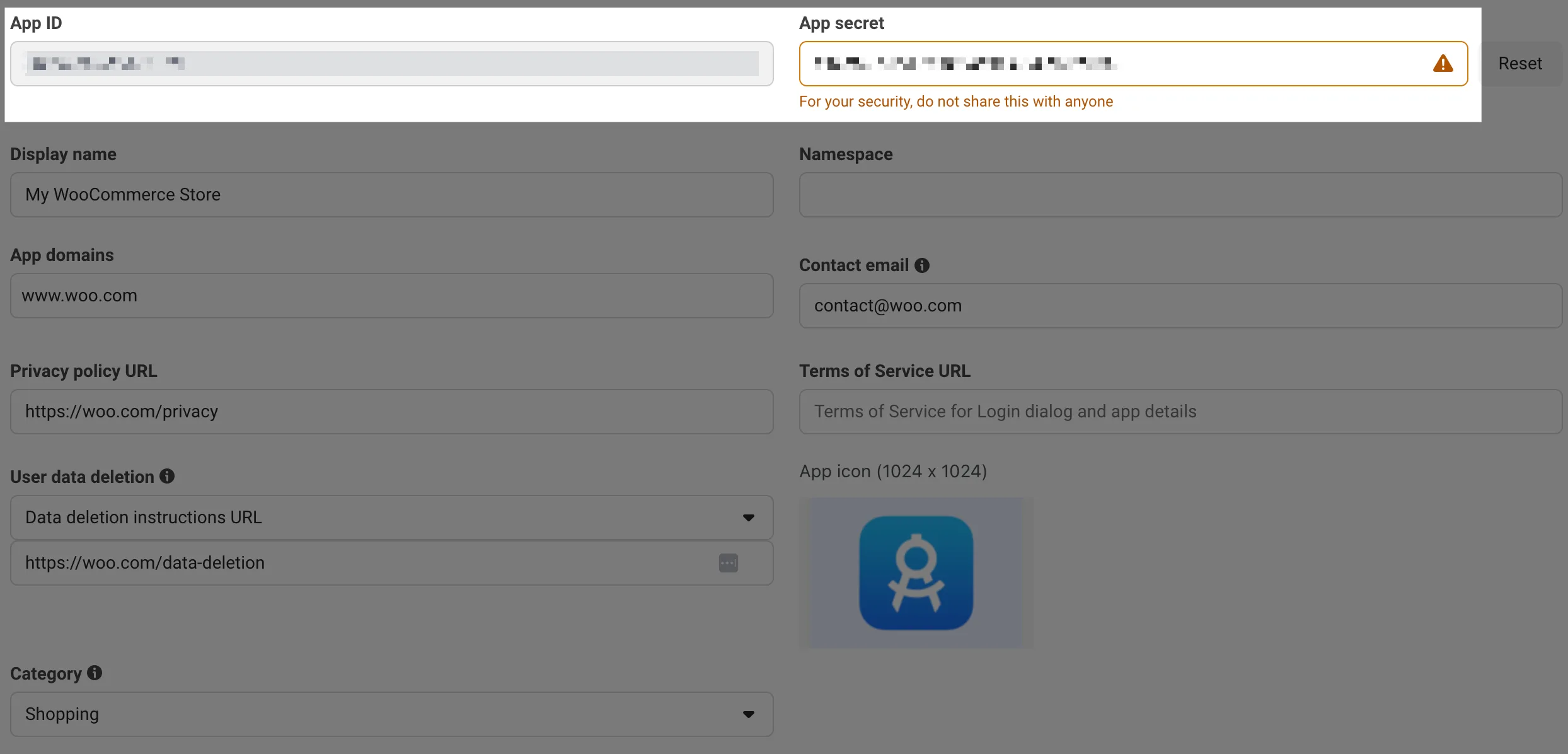
Once you’ve successfully created the app. you will find the App ID and App Secret from the App Settings.
Please ensure you fill up all the form inputs and click on Save Changes to publish the app and activate your credentials.
Please ensure you follow all the steps through reviewing your requirements, verifying your business, app review, and checking that all requirements are met for the credentials to work properly.
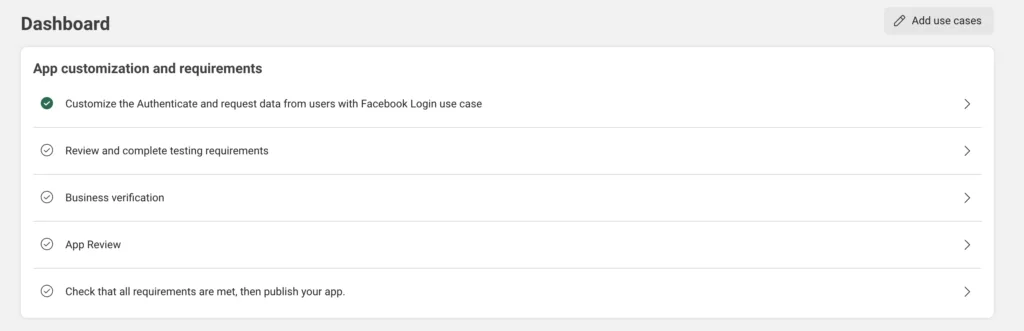
Missing any step might lead to the credentials not working. If you still need help, please read Meta’s Official Guide or talk to our support team.