

How to Enhance Image with AI
With the TryAura plugin, you can easily enhance your product image with AI. Also, you can generate a video for the product as well. This way, you can give an authentic feeling to the customer about how the product will look in a real-life model or an environment.
Here is how you can use this feature.
Log in to your WordPress dashboard and go to Products and select a product to edit. Now, click on the product update option located on the bottom right-hand side of the editor-
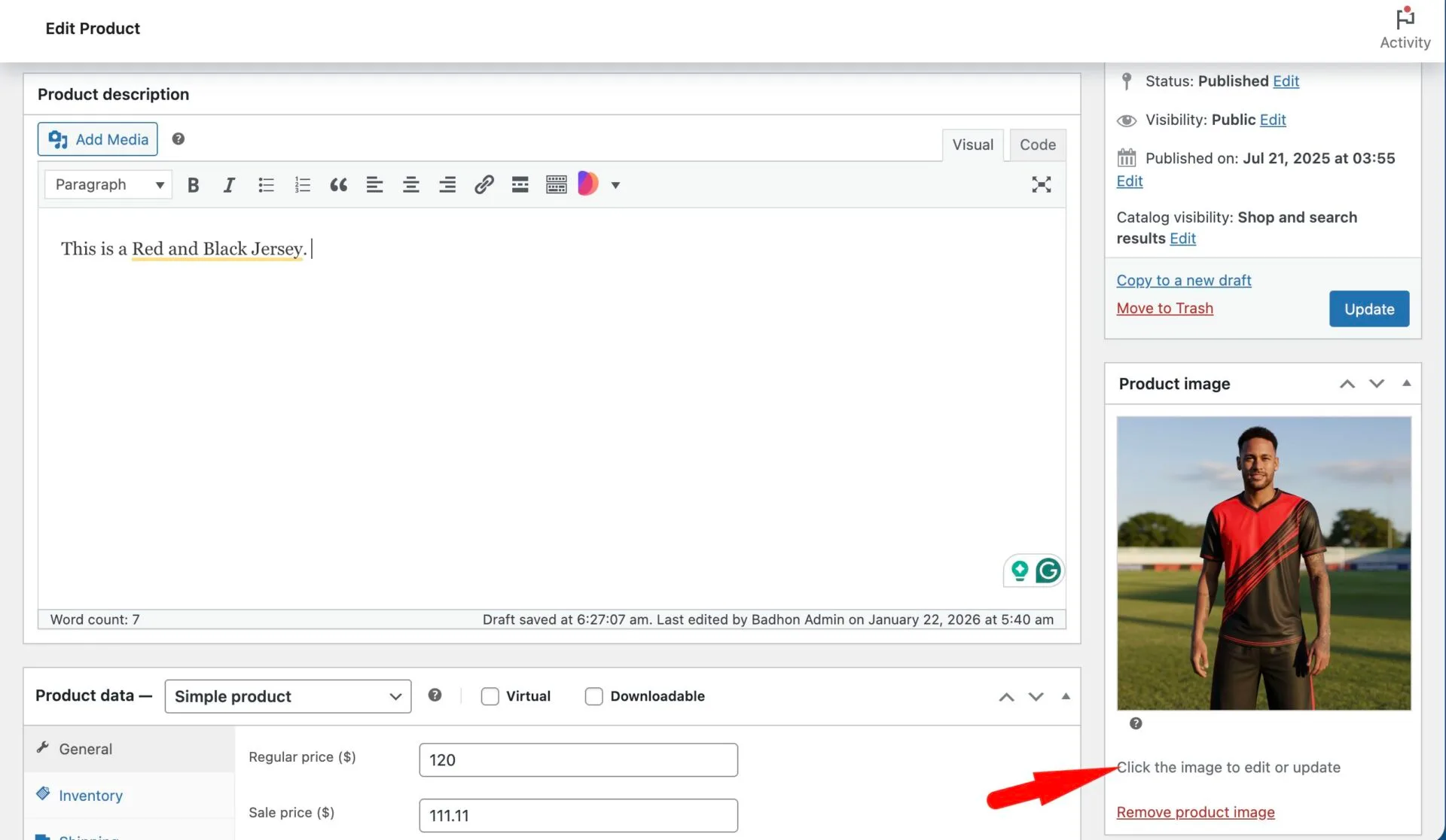
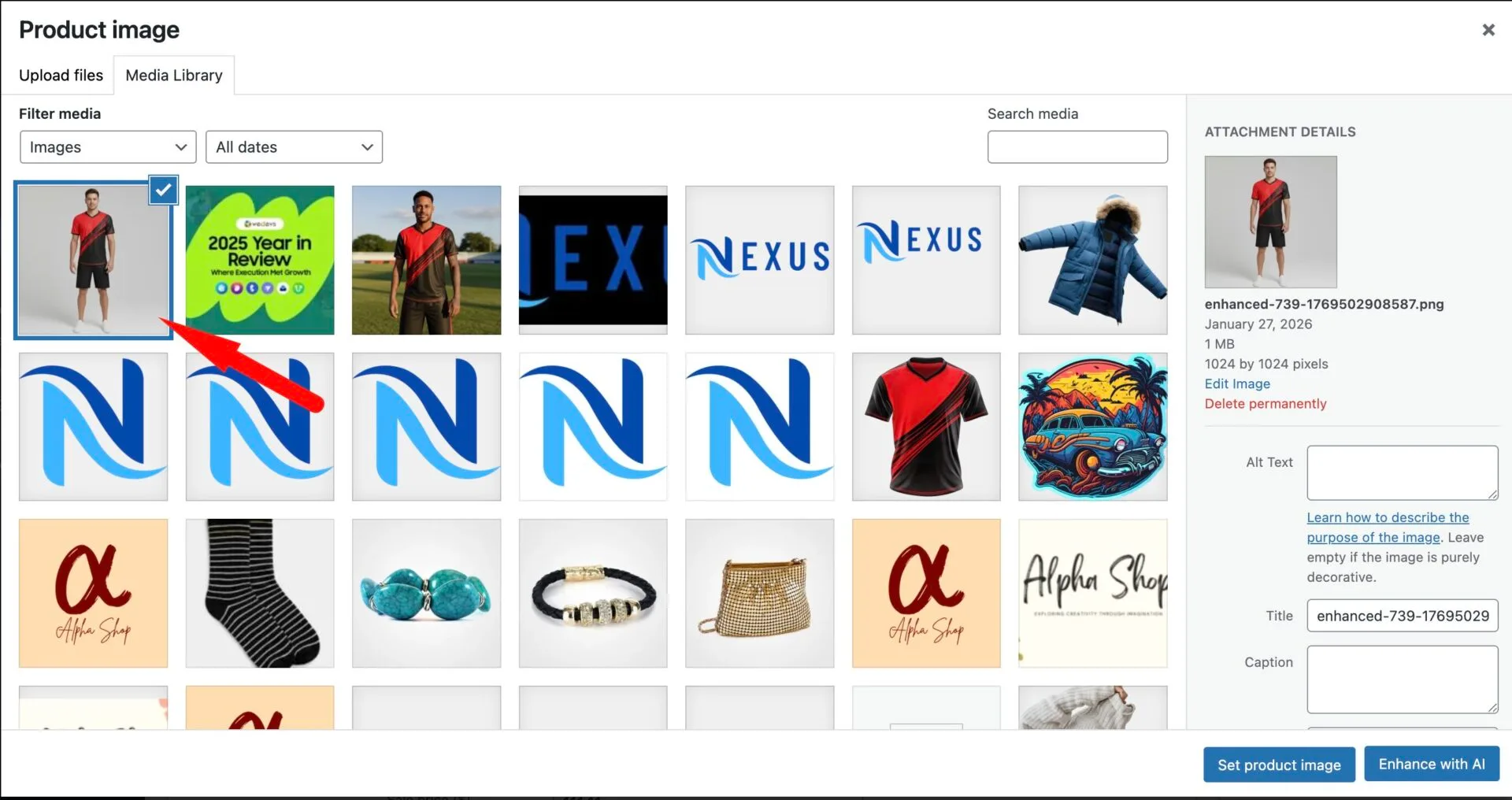
The media library window will open. On the bottom corner, you will see the “Enhance with AI button”, click on it-
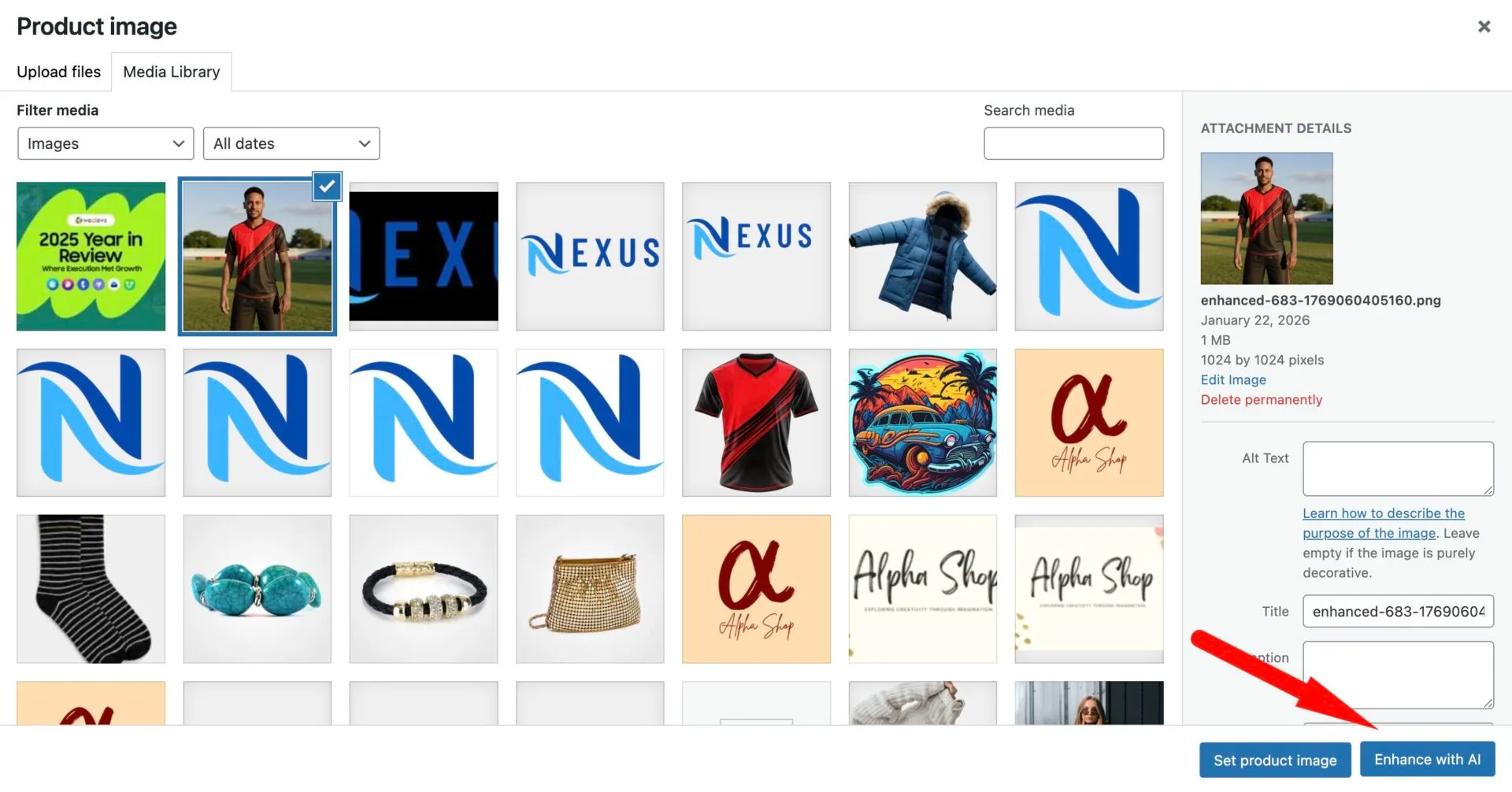
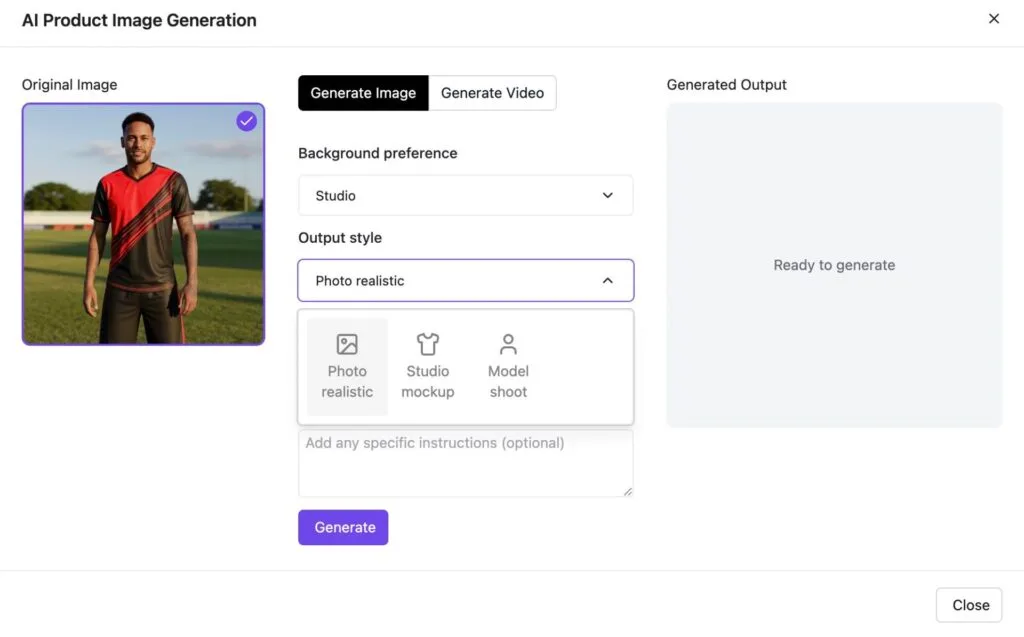
This will open a pop-up-
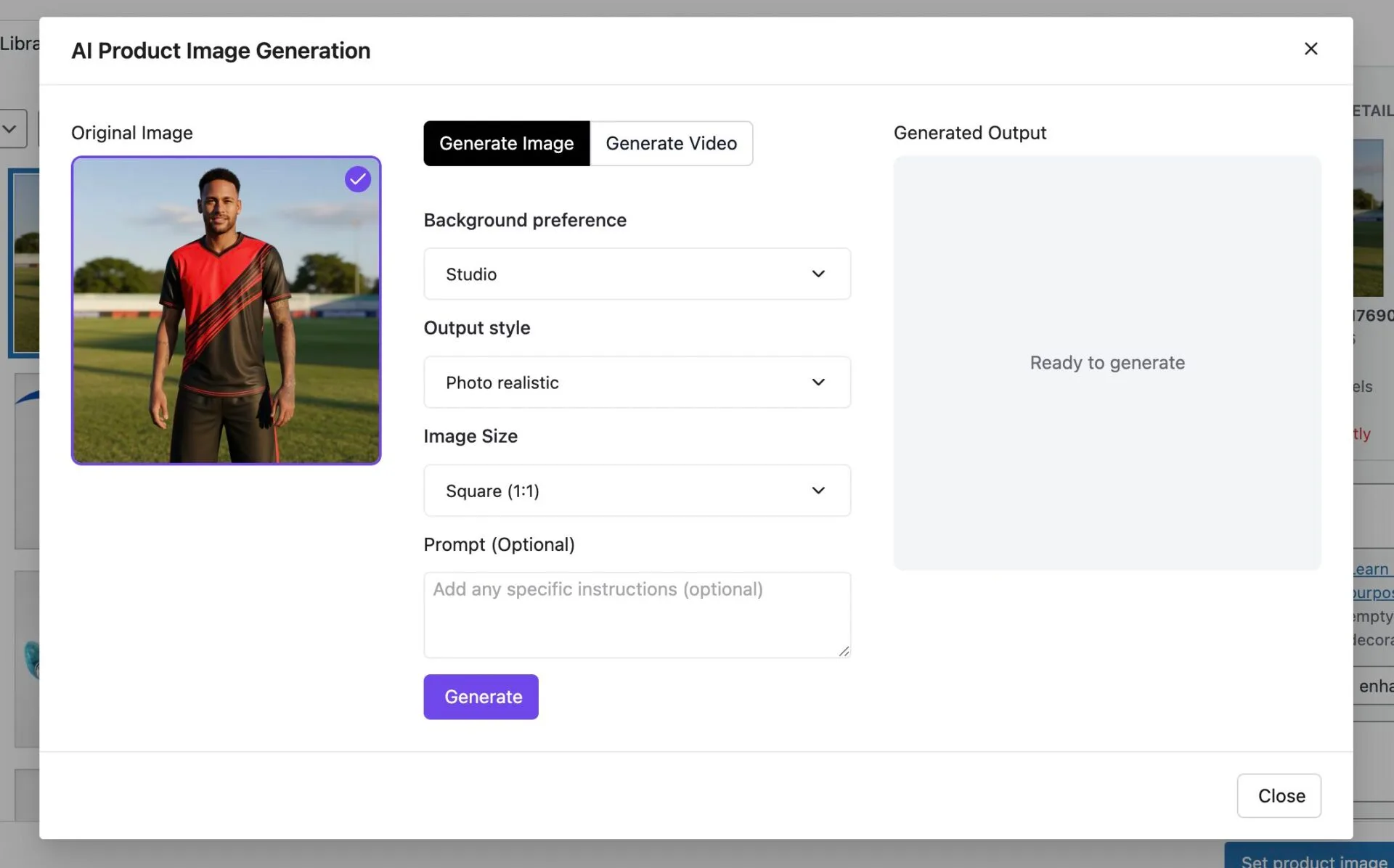
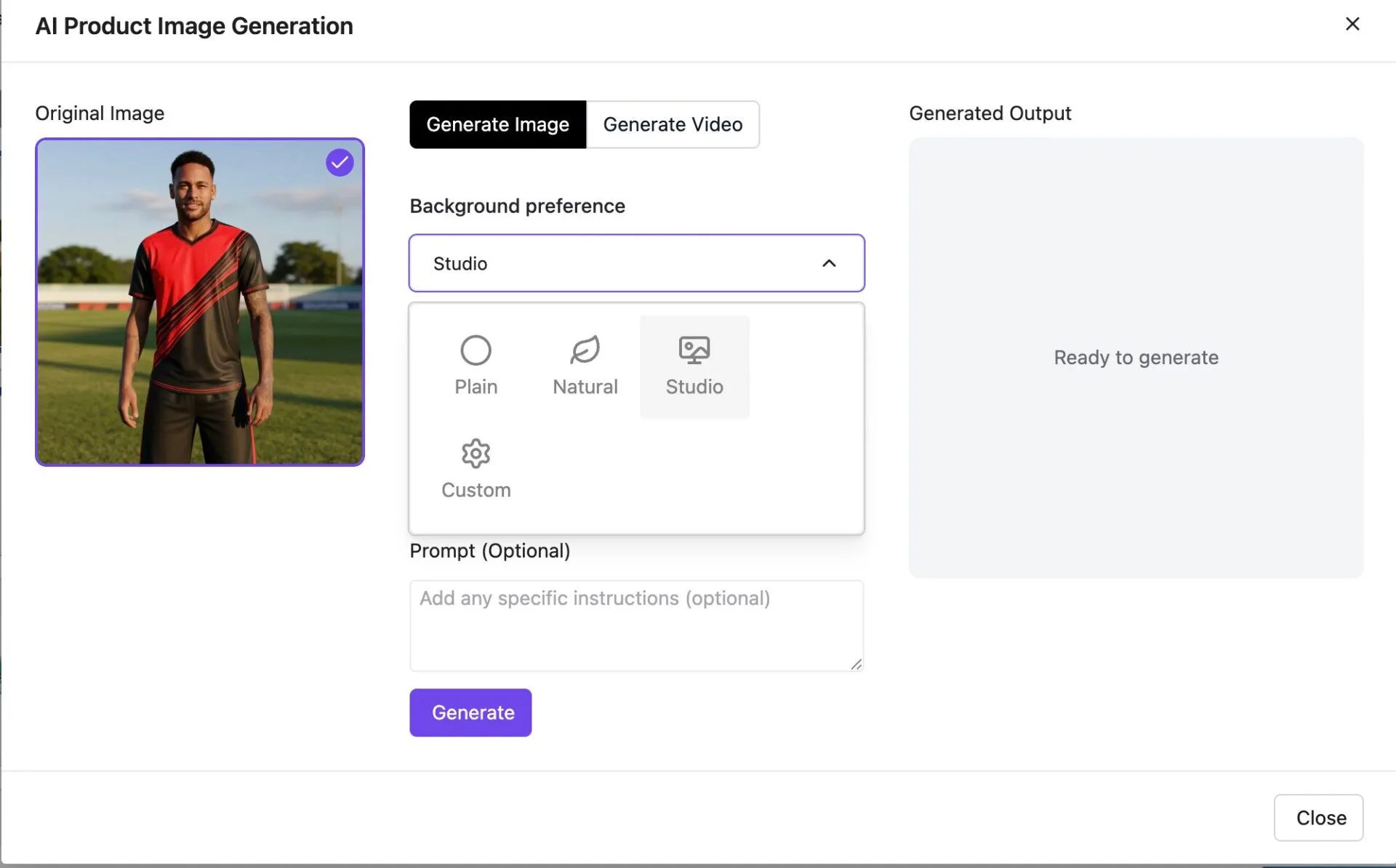
From here you can select your background preference-
- Studio
- Custom
- Natural
- Plain
Select your output style-
Photo Realistic
Studio Mockup
Model Shoot
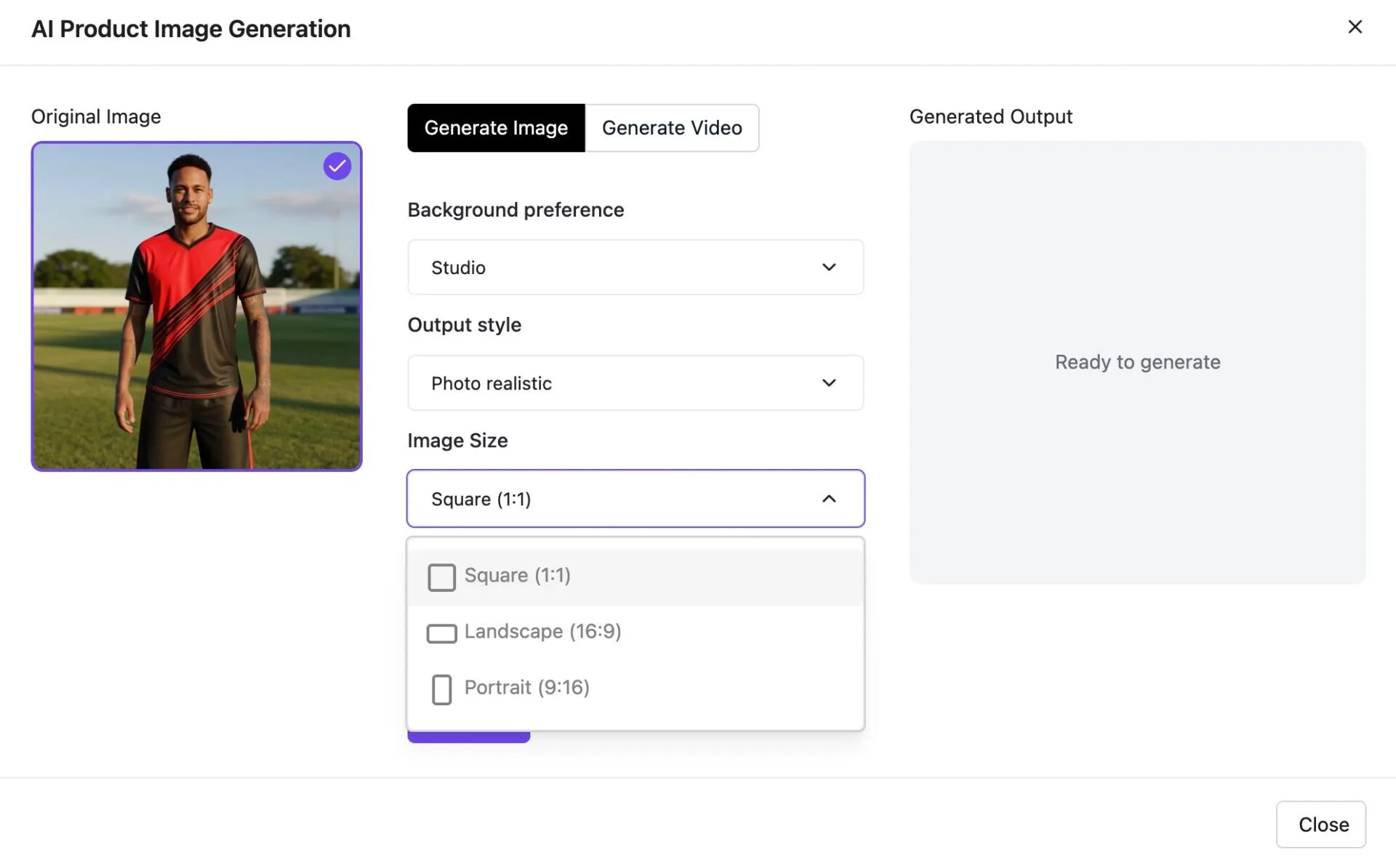
Then, choose your image size-
- Square
- Landscape
- Portrait
Lastly, you can enter any command, for example, if you want your T-shirt to be worn by Tom Cruise. Here is the generated output-
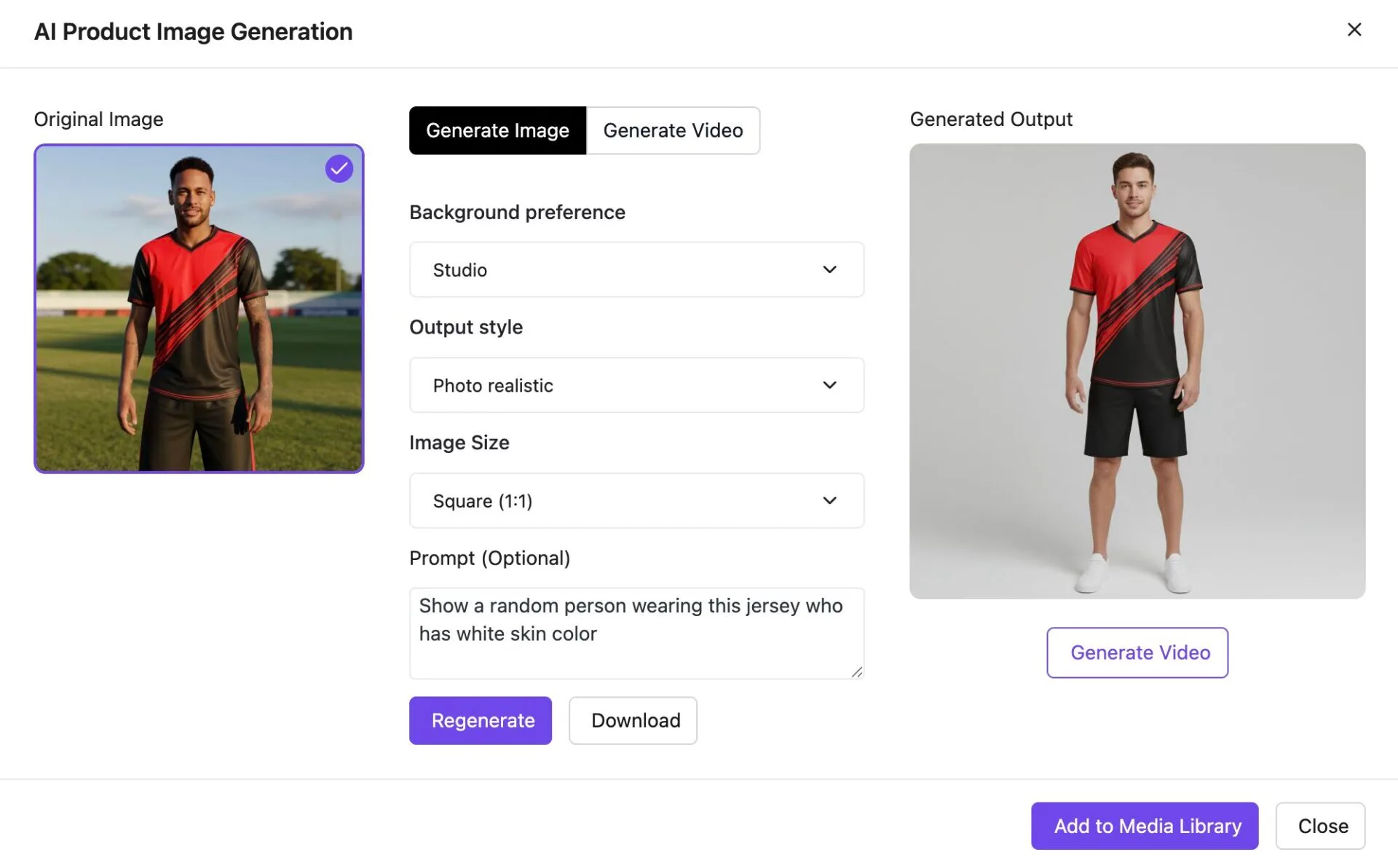
Also, you can generate video as well.
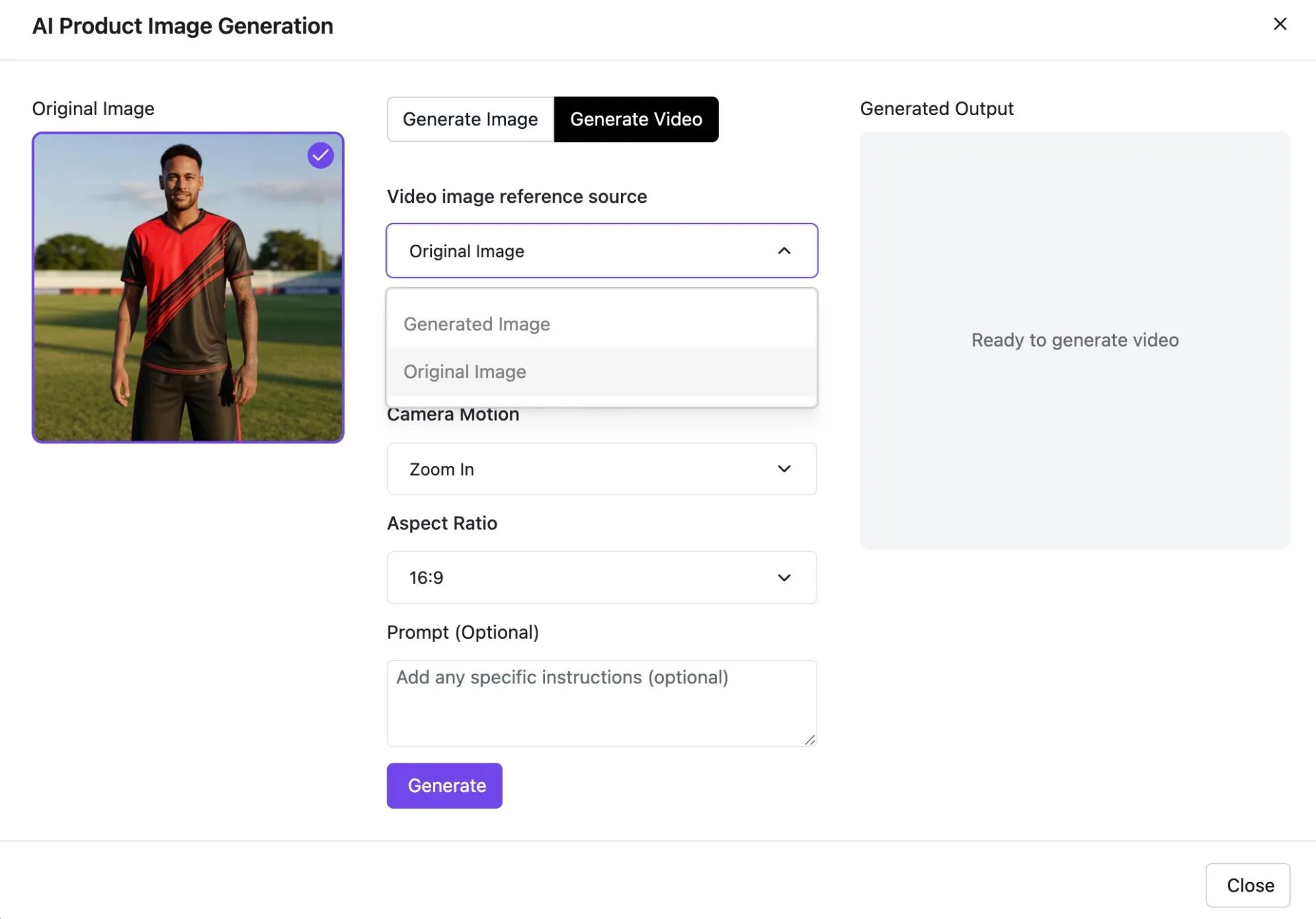
In the pop-up, you can choose the image reference source-
- Generated Image
- Original Image
Styles-
None
Natural
Studio
Cinematic
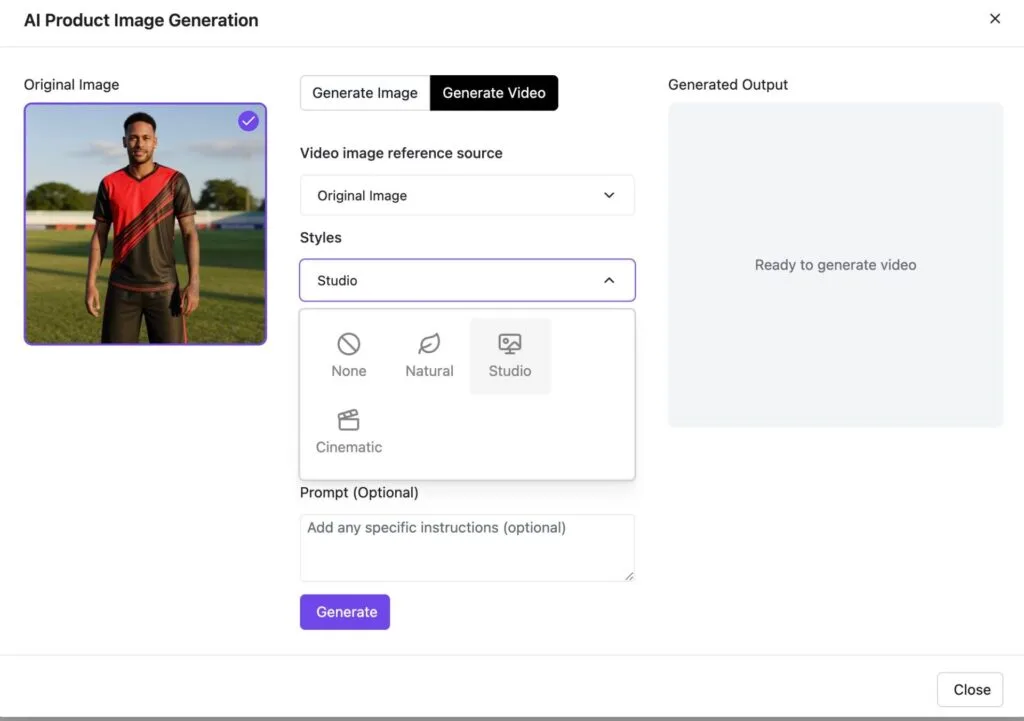
Camera Motion-
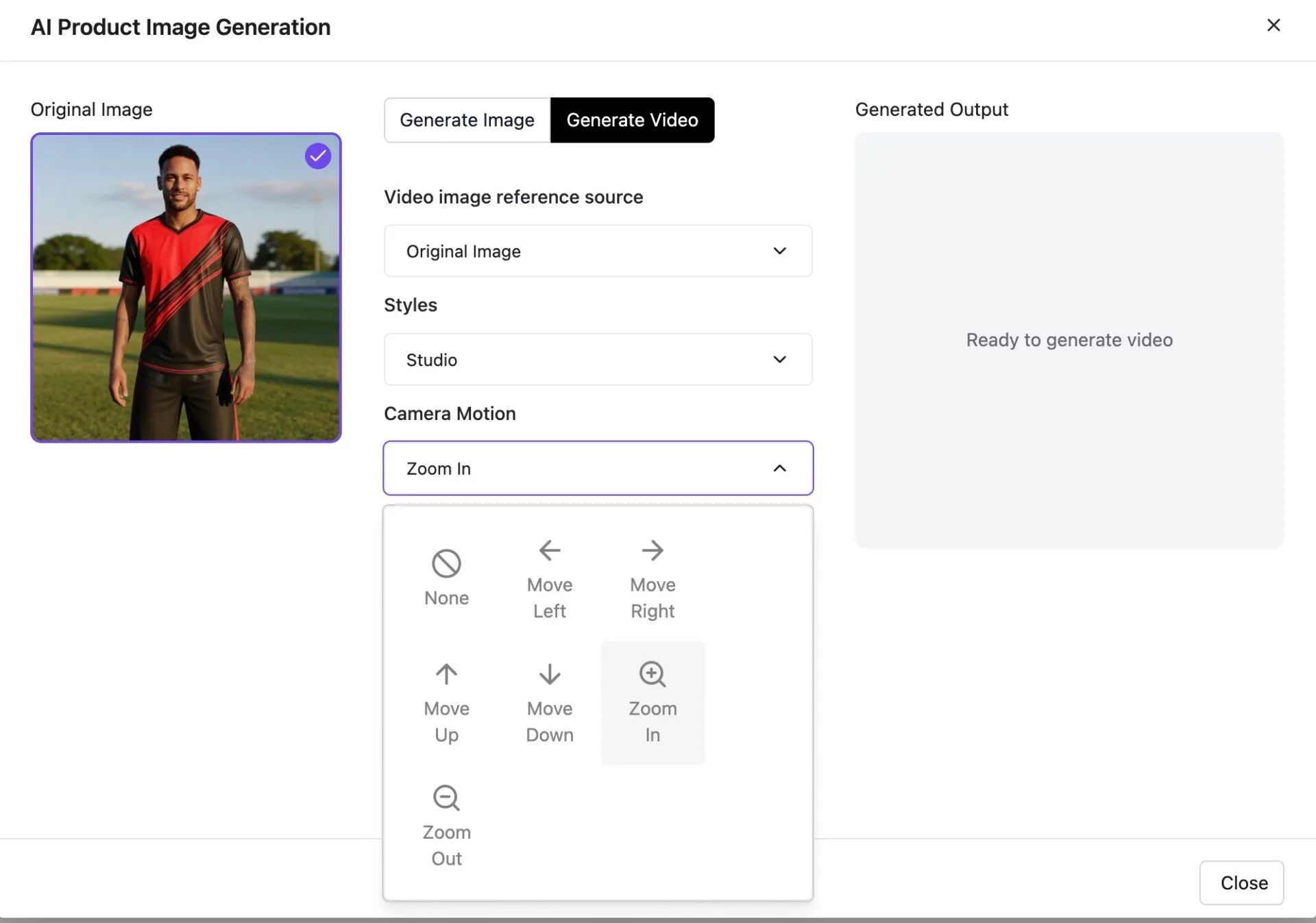
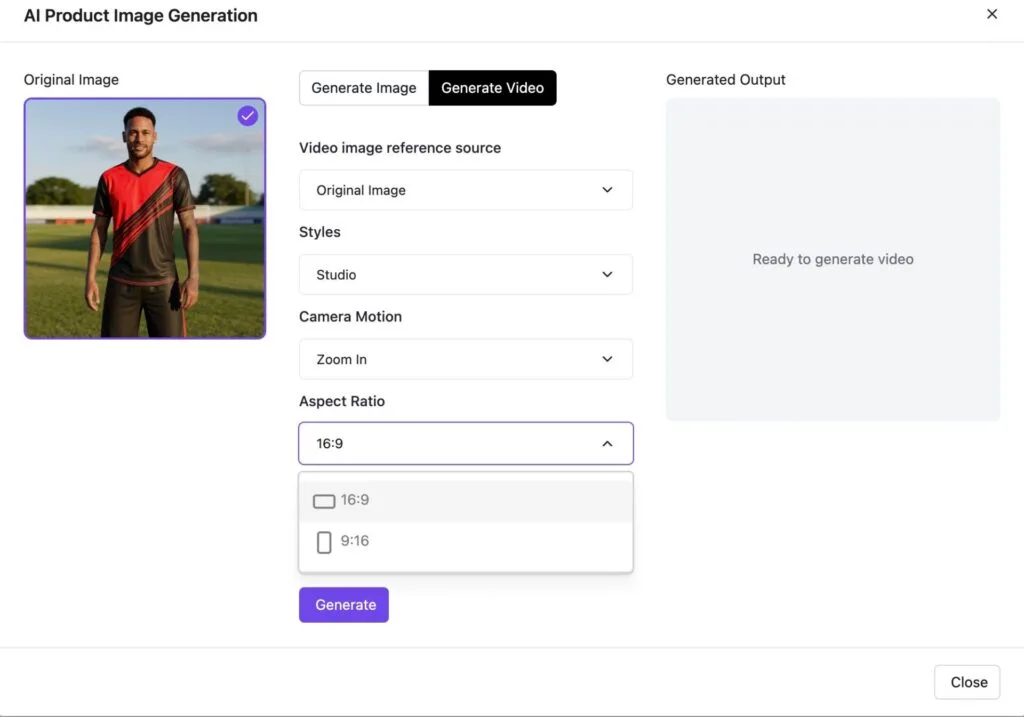
Aspect Ratio-
- 16:9
- 9:16
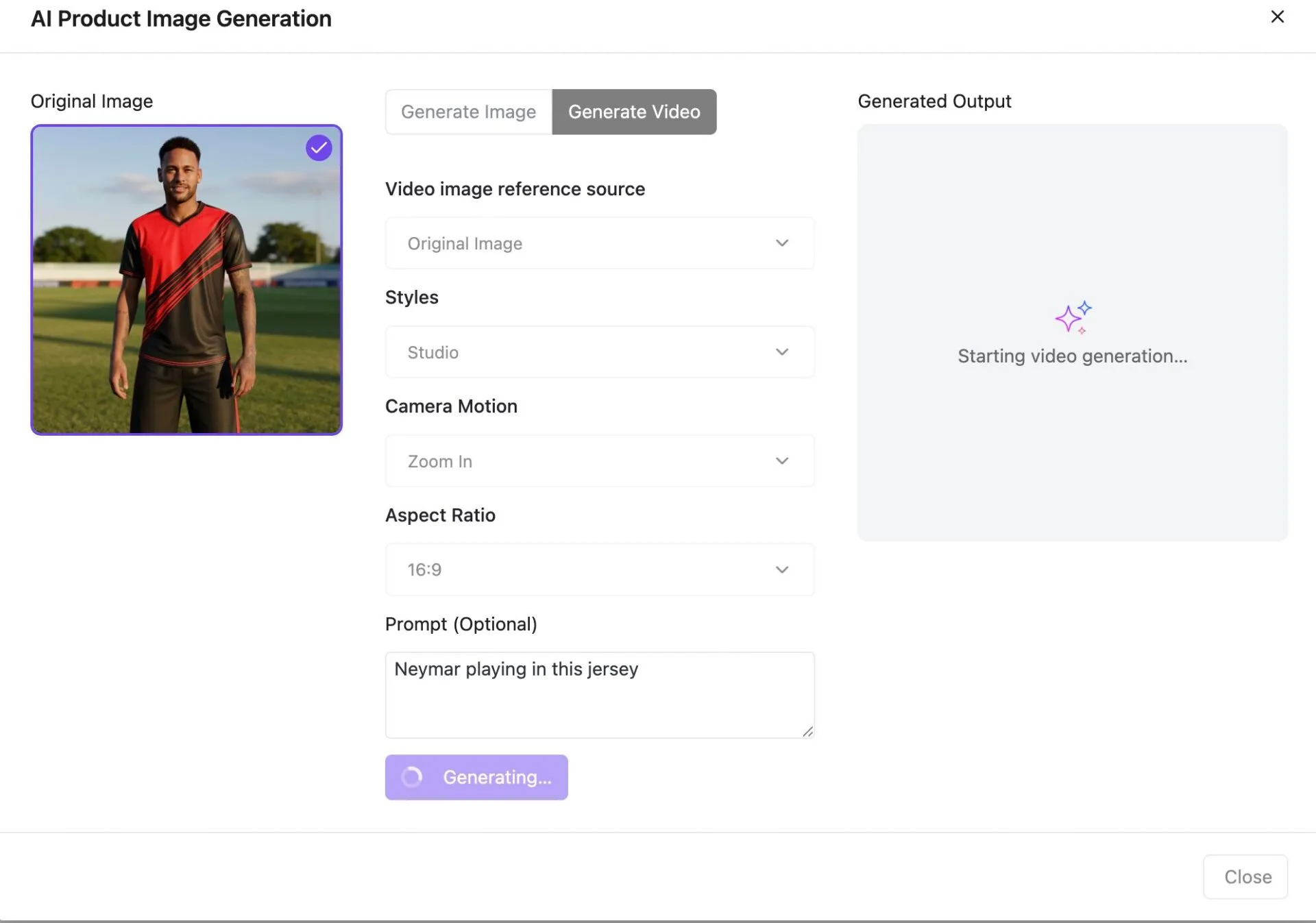
You can also add a custom prompt. Then click on Generate to see the output video-
You can add the generated result to your media library-
This is how easily you can enhance your product image with AI.