

Connect your Instagram and TikTok accounts
This page walks you through connecting a social account so FeedPulse can pull in your posts.
Before you start
Section titled “Before you start”- FeedPulse needs to be installed. If it isn’t, see Install FeedPulse on your store.
- Have your Instagram or TikTok login ready. You’ll sign in through that platform to authorize the connection.
Which accounts you can connect
Section titled “Which accounts you can connect”When you add an account, FeedPulse gives you three options:
- Instagram: for personal and creator accounts.
- Instagram with Facebook Page: for business accounts that need full access. Choose this if your Instagram account is set up as a business profile.
- TikTok: for any TikTok account.
📝 Note: Instagram business accounts need a linked Facebook Page for full access. If your Instagram is a business profile, choose Instagram with Facebook Page. Creator accounts without a linked Page get limited access.
Connect an account:
Section titled “Connect an account:”Go to the Account tab and link your account. Choose your provider from the modal: Instagram, Instagram with Facebook Page, or TikTok.
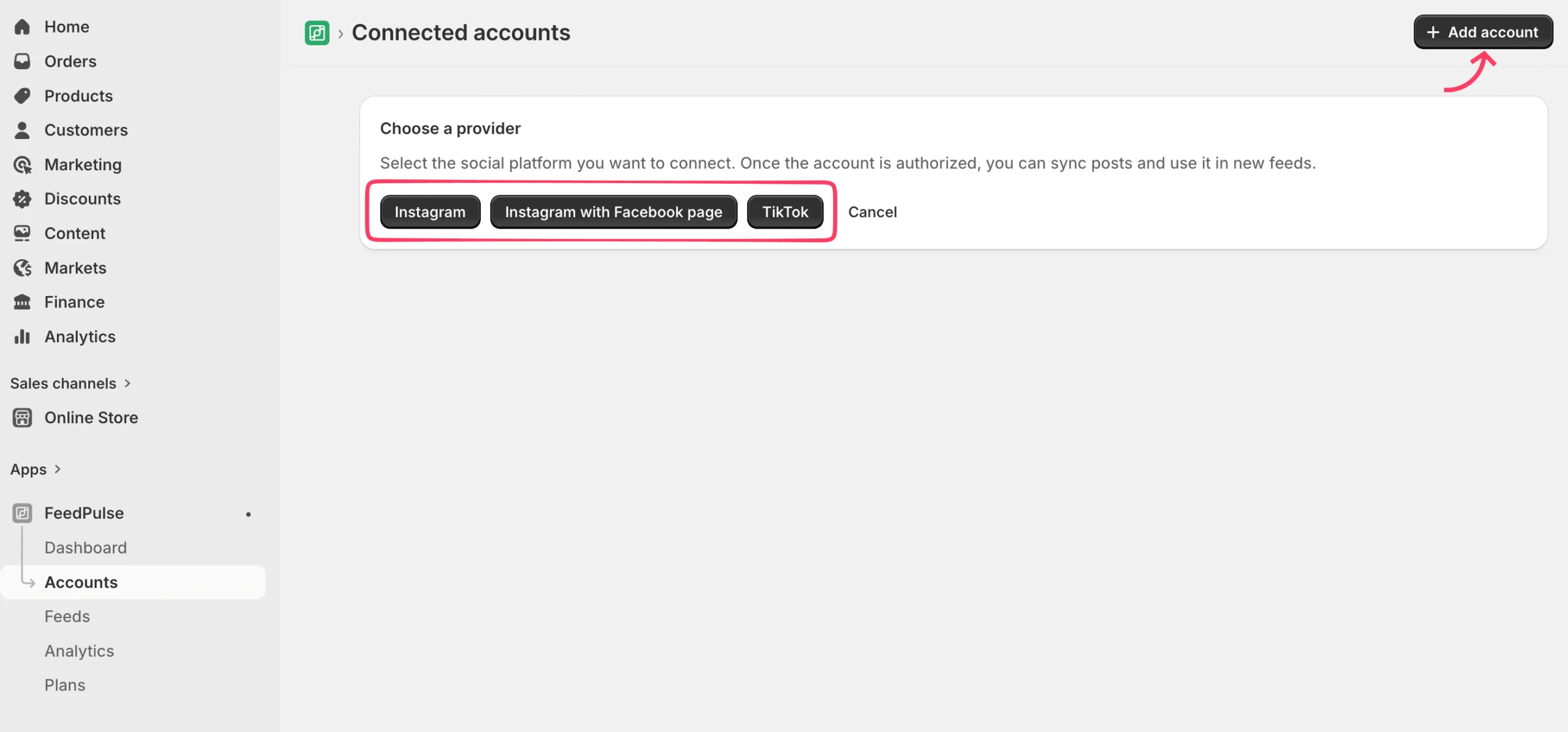
A window opens for that platform. Sign in if needed, then click Allow to give FeedPulse permission to read your posts.
If prompted, authorize the app to connect with FeedPulse. After the connection is complete, you’ll see the connected app listed in your Account tab, as shown below. All your accounts appear in the list with a green Active badge.
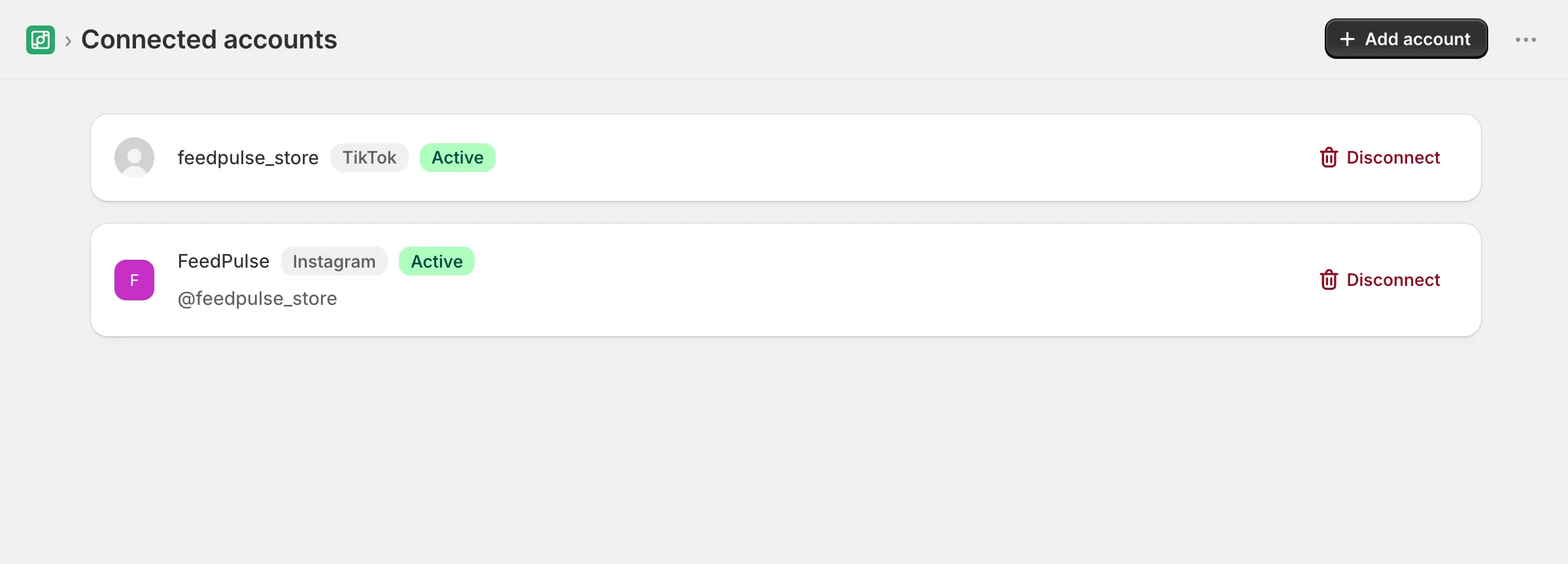
To connect additional channels, repeat the same steps and select the desired platform.
What an account card shows
Section titled “What an account card shows”Each connected account appears as a card with:
- The profile avatar.
- The display name and @username.
- A platform badge (Instagram or TikTok).
- A status badge: green Active when connected, or Disconnected if the connection drops.
- A Disconnect button.
FeedPulse refreshes the connection for you in the background, so you don’t have to reconnect on a schedule.
How many accounts you can connect
Section titled “How many accounts you can connect”The Free plan supports one connected account with one feed. For the full breakdown, see Plans and billing.
Reconnect or remove an account
Section titled “Reconnect or remove an account”If an account shows Disconnected (for example, after you change a password or revoke access on the platform), reconnect it by running + Add account again for that platform. To remove an account entirely, click Disconnect on its card.
What’s next
Section titled “What’s next”With an account connected, you’re ready to create your first feed.