

Add your feed to your storefront
This page walks you through publishing your feed onto a store page and explains what your shoppers will see.
Before you start
Section titled “Before you start”📝 Note: Save your feed and set it to Active first. Only Active feeds appear in the feed dropdown in your theme.
Add the FeedPulse block to a page
Section titled “Add the FeedPulse block to a page”You can add the feed to your Shopify store in two ways. Navigating to the theme page from the saved feed and using the Shopify Admin panel.
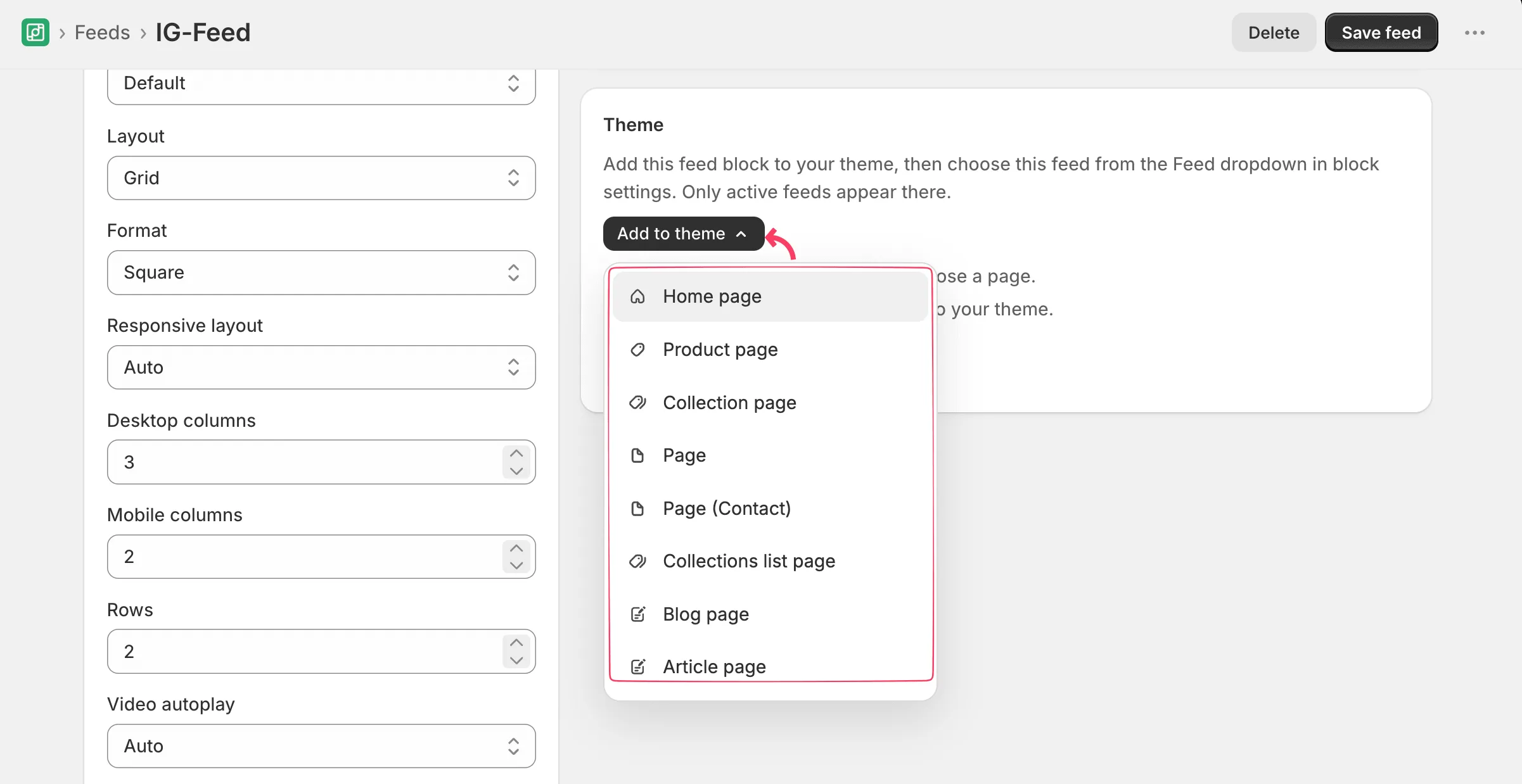
Adding feed from the feed settings page:
Section titled “Adding feed from the feed settings page:”Add the saved feed to your theme using the FeedPulse block.
- Click Add to theme and select a page or template.
- The FeedPulse block will be added automatically.
- In the block settings, choose your IG Feed from the Feed dropdown.
- Save your changes to display the feed on your website.
Note: Only feeds with Active status are available in the Feed dropdown.
Adding feed using the admin panel:
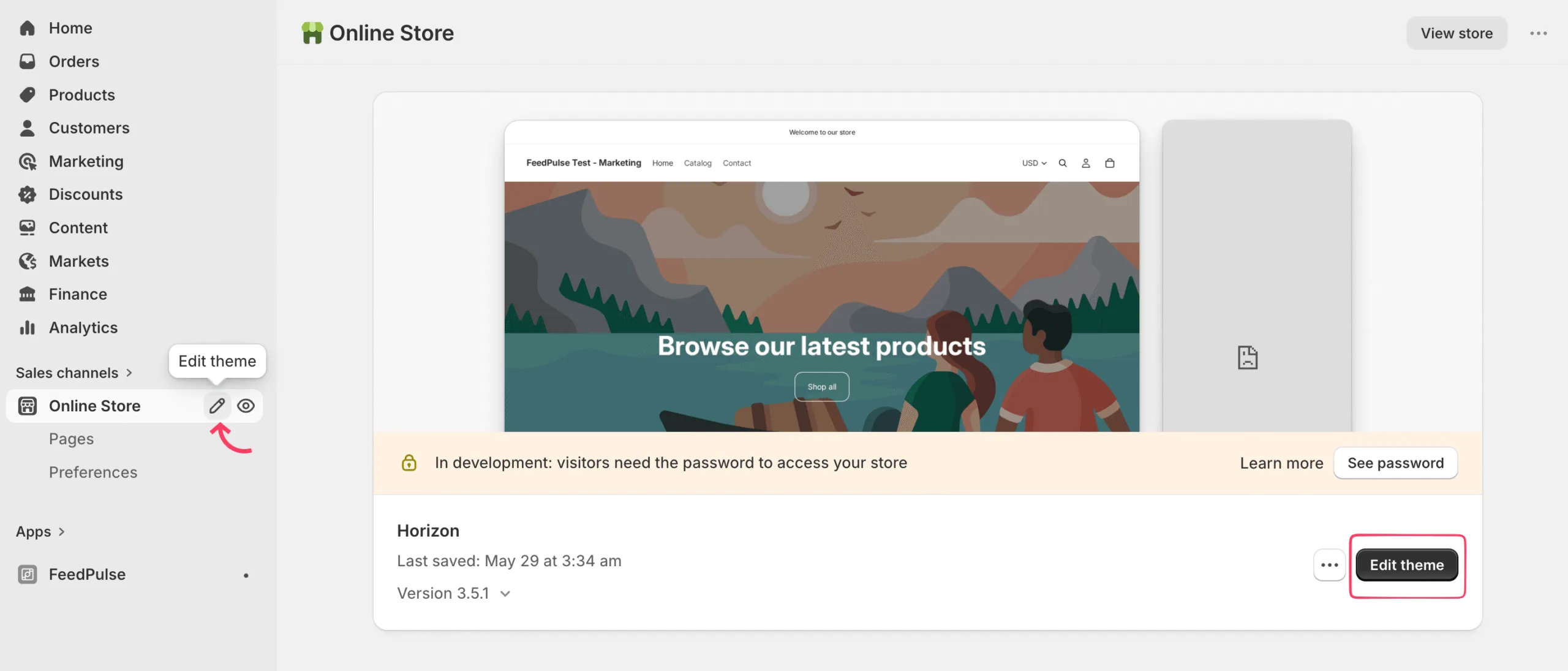
Section titled “Adding feed using the admin panel:”In Shopify Admin, go to the Online Store section and click on the edit icon or click the Edit theme button to open the theme editor for your live theme.
Click Add section, open the Apps tab, and select FeedPulse Social Feed.
In the block settings, pick your feed from the Feed dropdown. Only Active feeds appear here.
Place the block where you want it on the page. You can add it to your homepage, a product page, or any page that allows sections.
Set the storefront options for the block: a Title (for example, “Instagram Feed”), the Title color, size, alignment, margin, etc.
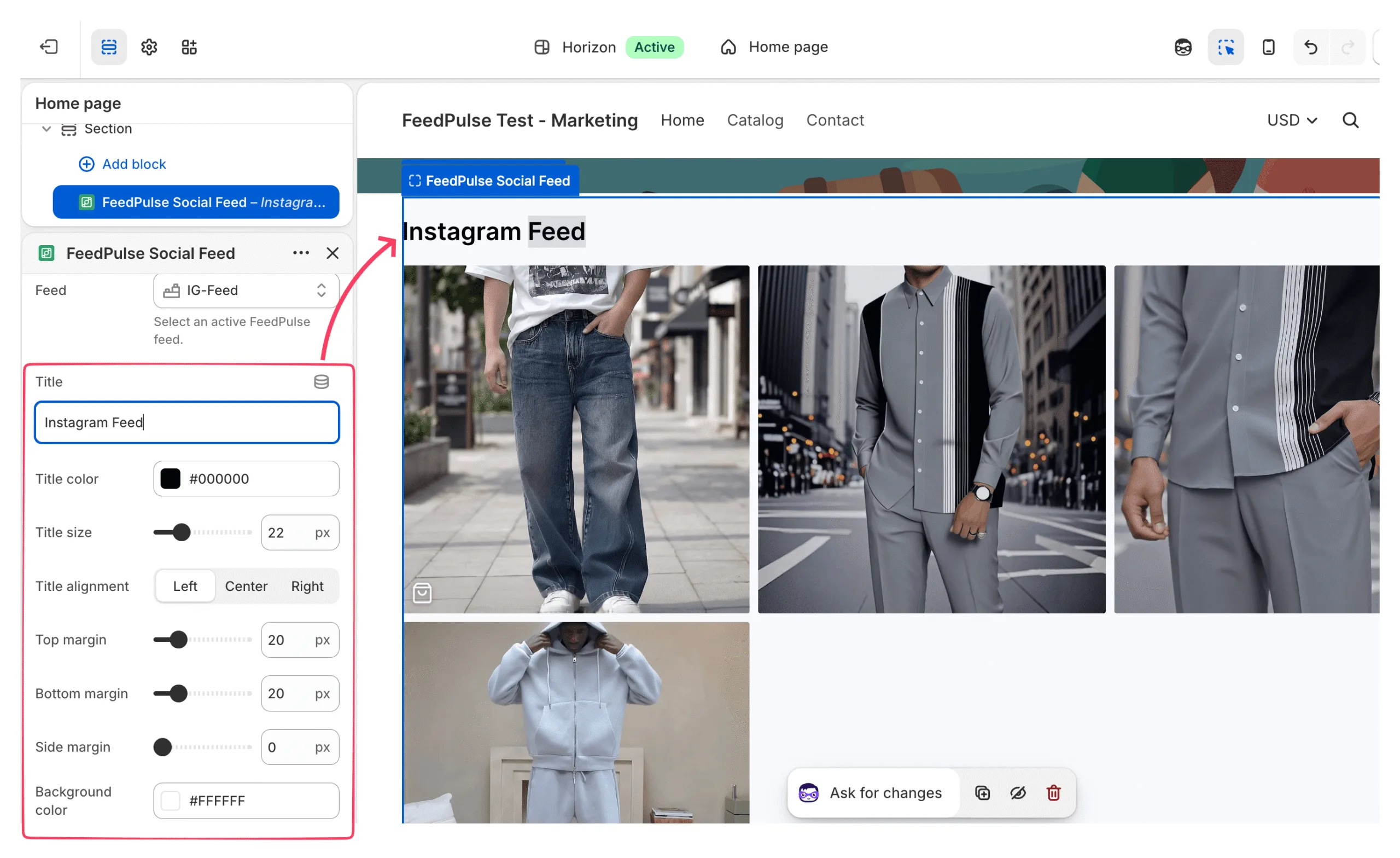
The editor shows your feed live as you change these. When it looks right, click Save.
What your shoppers see
Section titled “What your shoppers see”On your storefront, the feed renders as a native-looking section. It loads in the background, and the images and videos load as the shopper scrolls, so it doesn’t slow your page down.
When a shopper clicks a post, a popup opens right on the page:
- The post’s image or video fills the left side.
- The right side shows the username, post date, likes and comments, and a tagged products section with each product’s thumbnail, title, and price. If a product has a compare-at price, the original price shows with a line through it.
- The footer has a View on Instagram or View on TikTok link that opens the original post in a new tab.
There are two ways a shopper can act from the popup:
- Click the product card (the thumbnail or title) to go to that product’s page.
- Click the cart icon on a product to add it to the cart. The icon shows a brief loading animation, then turns red to confirm the item was added.
Adding to cart happens in the background, with no page reload, and the cart count updates. The shopper stays right on the feed.
📝 Note: Add-to-cart adds the product’s default variant. A size and color picker in the popup is planned for a future release.
If the feed doesn’t appear
Section titled “If the feed doesn’t appear”If you don’t see your feed on the page, check three things:
- The feed is set to Active.
- You selected the right feed in the block settings.
- Your theme is an Online Store 2.0 theme.
If it still doesn’t show, see Troubleshooting and FAQ.
What’s next
Section titled “What’s next”Now that your feed is live, see how it’s doing in Track your feed performance.