

How to Enable Try On for a Product
Using the TryAura plugin, customers can virtually try on any product and see how it looks in a specific setting before buying.
For example, before buying a jersey, they can see how it will look in them, or before buying a table fan, they can see how it will look in a table or in a certain corner of the house.
This feature will increase the conversion rate and improve the overall customer experience. Also, it will increase the credibility of the online store.
Here is how to enable this feature.
Enable the Try On Toggle from the Backend
Section titled “Enable the Try On Toggle from the Backend”To enable this feature in the frontend, the admin needs to enable the Try On Toggle button from WordPress–> Products. Select the products and enable the Try On option-
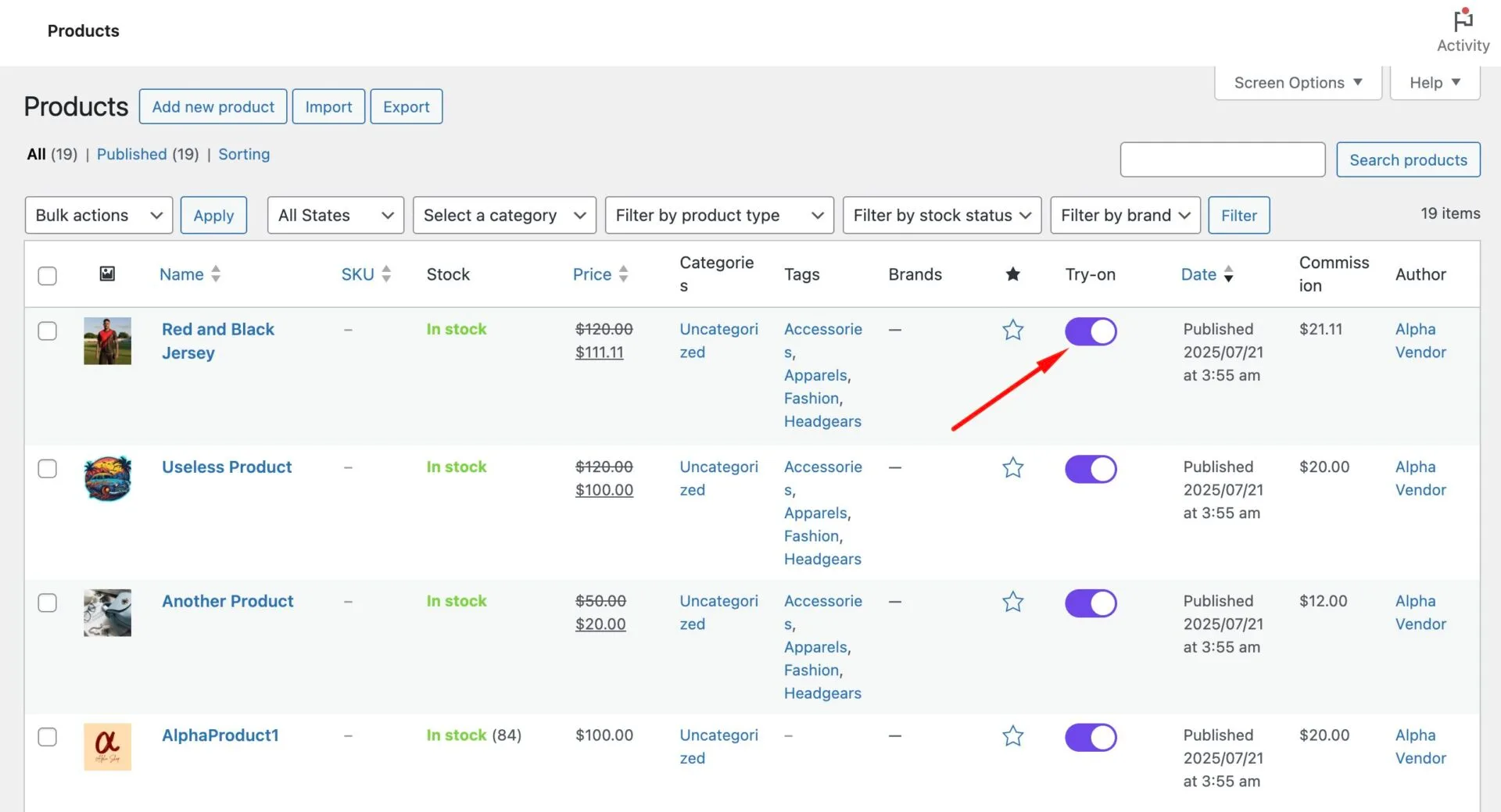
That’s it. The feature is live.
How the Customer Will Use this Feature
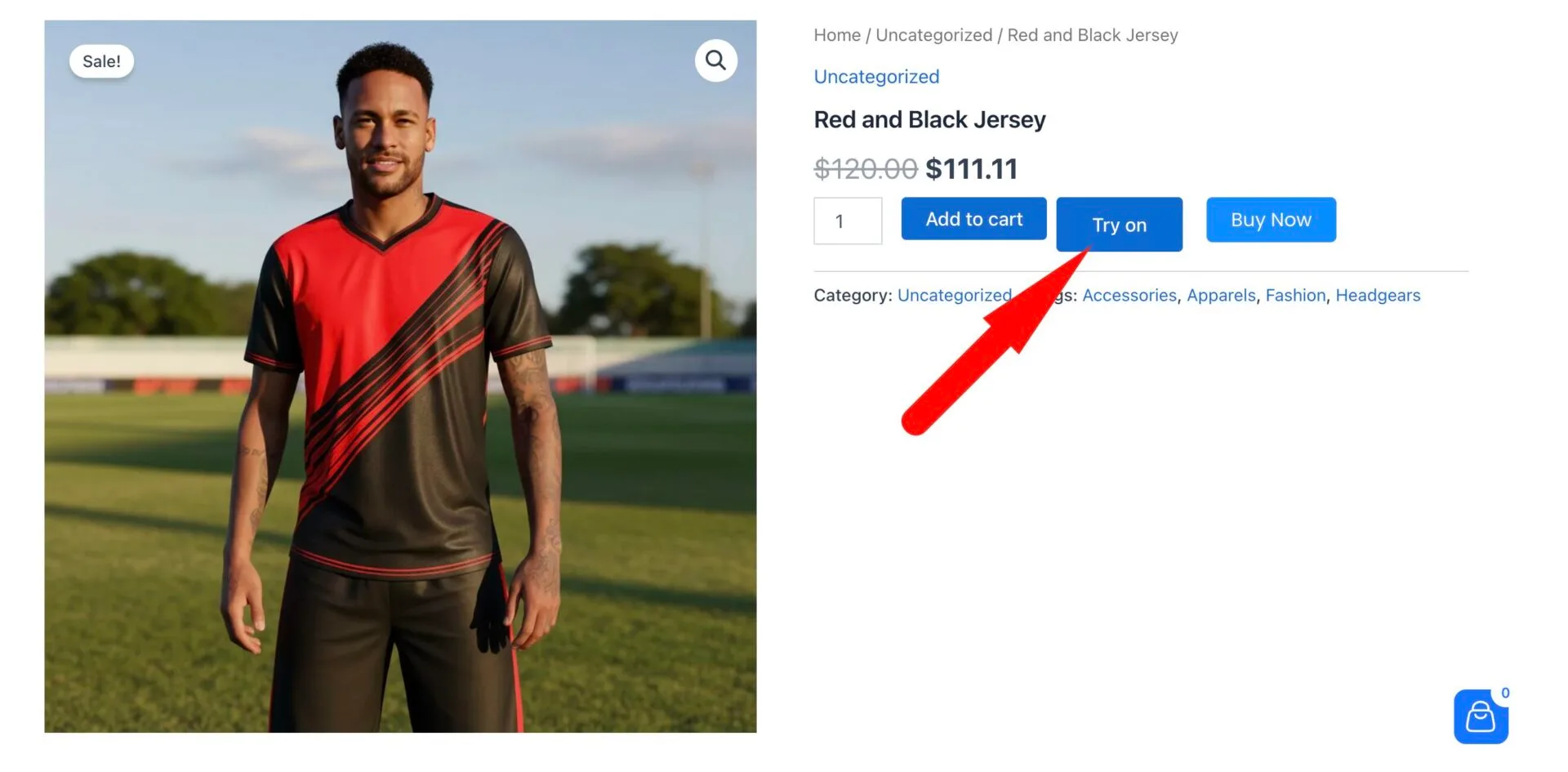
Section titled “How the Customer Will Use this Feature”Customers will be able to see the “Try On” button in the single product page.
To see how the product will look on them or in their house/offices, etc, they will click on the Try On button-
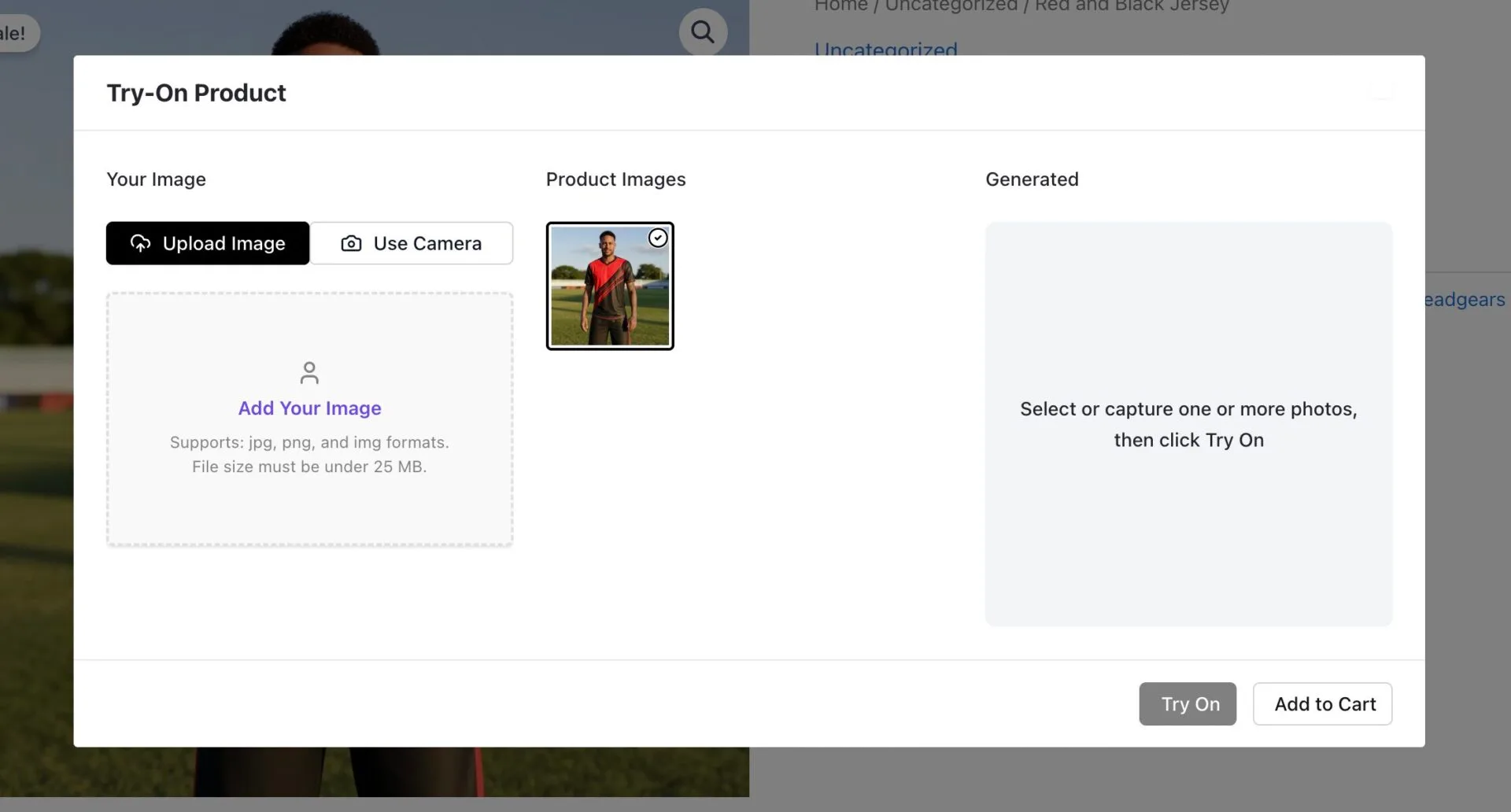
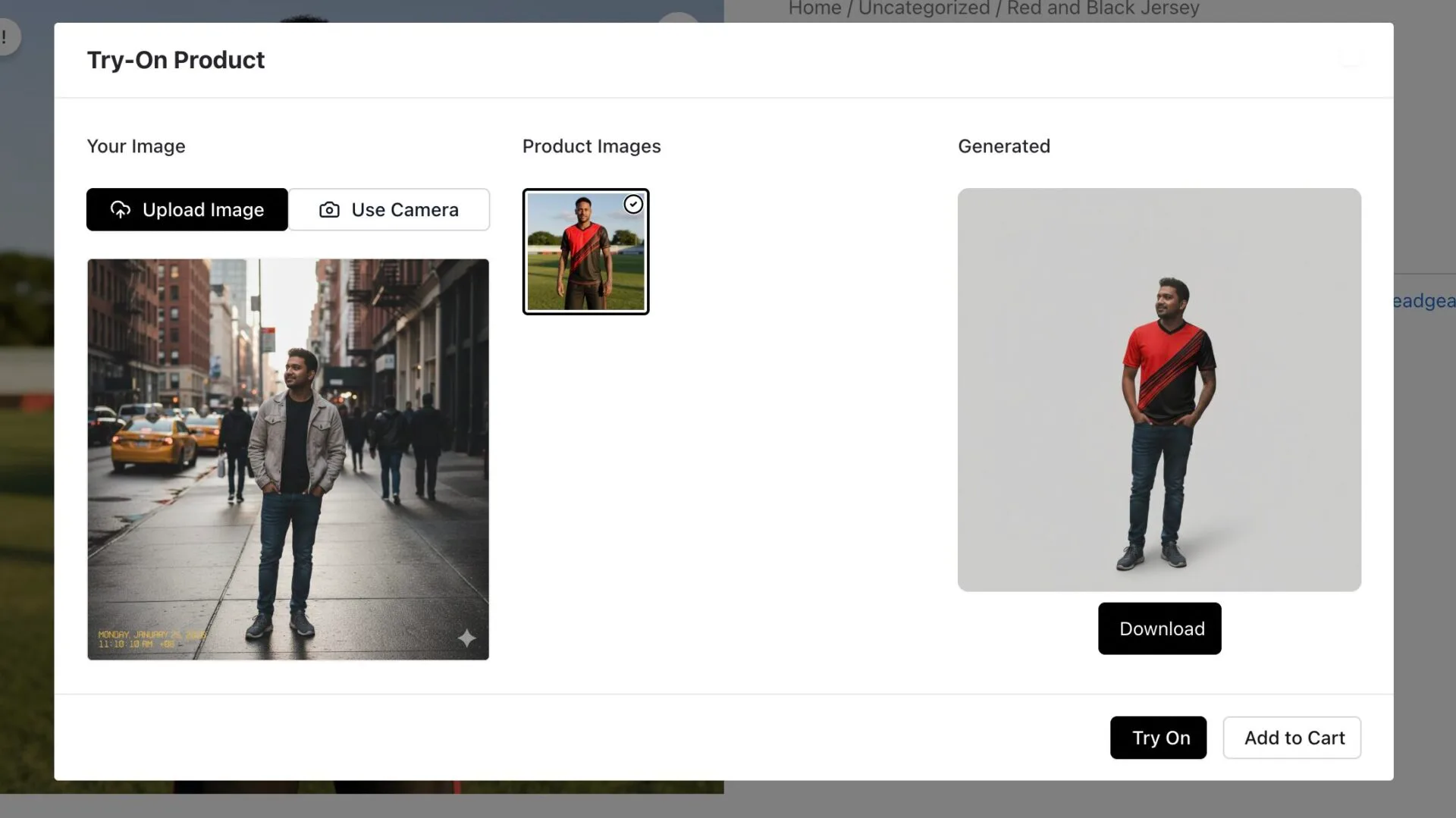
This will open a pop-up. In the pop-up, the customer can try on the product 2 ways-
- By uploading an image
- By taking a live picture
After that, they need to click on the Try On button to generate the result-
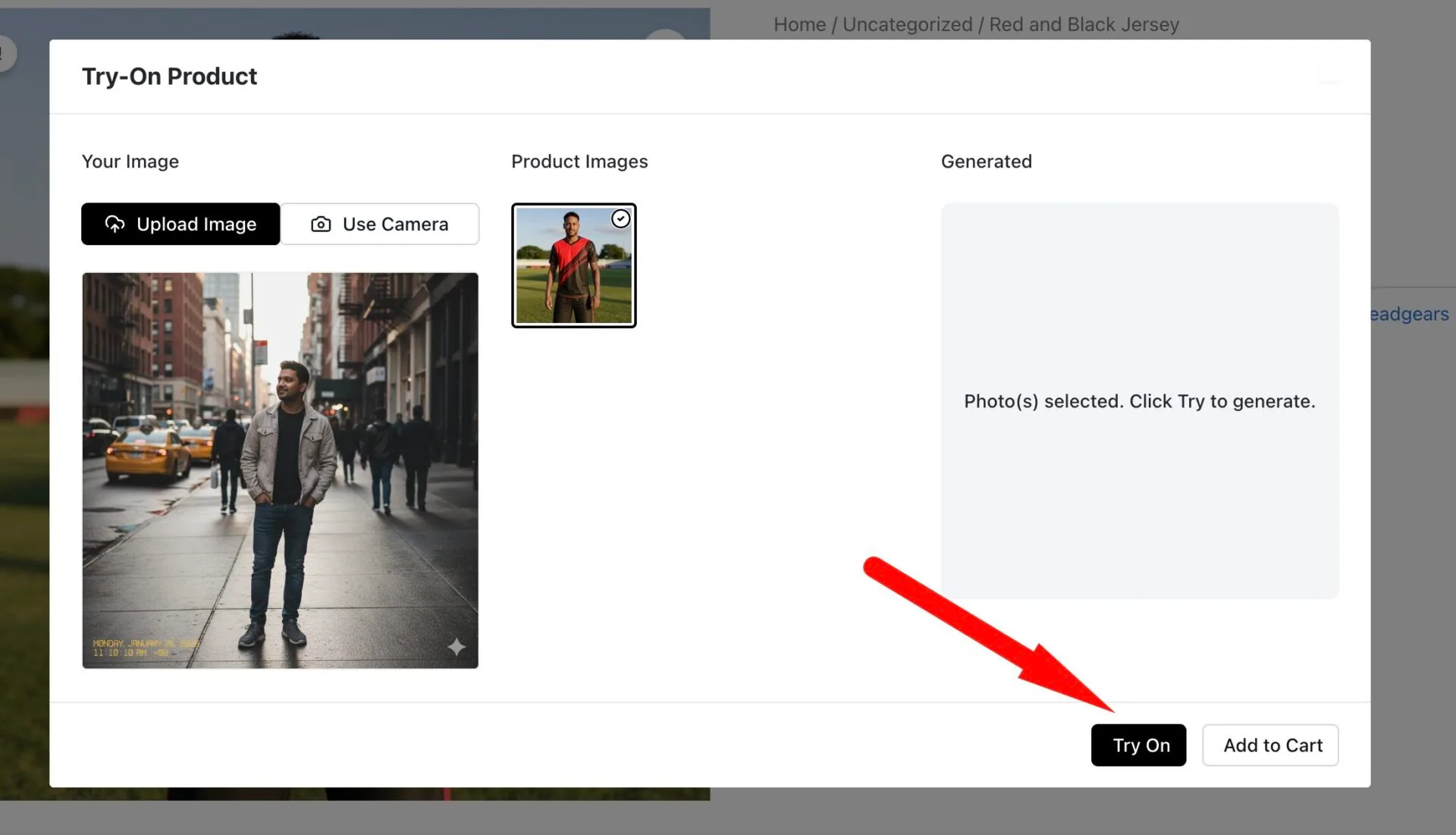
This will be the result-
In case of taking a live picture-
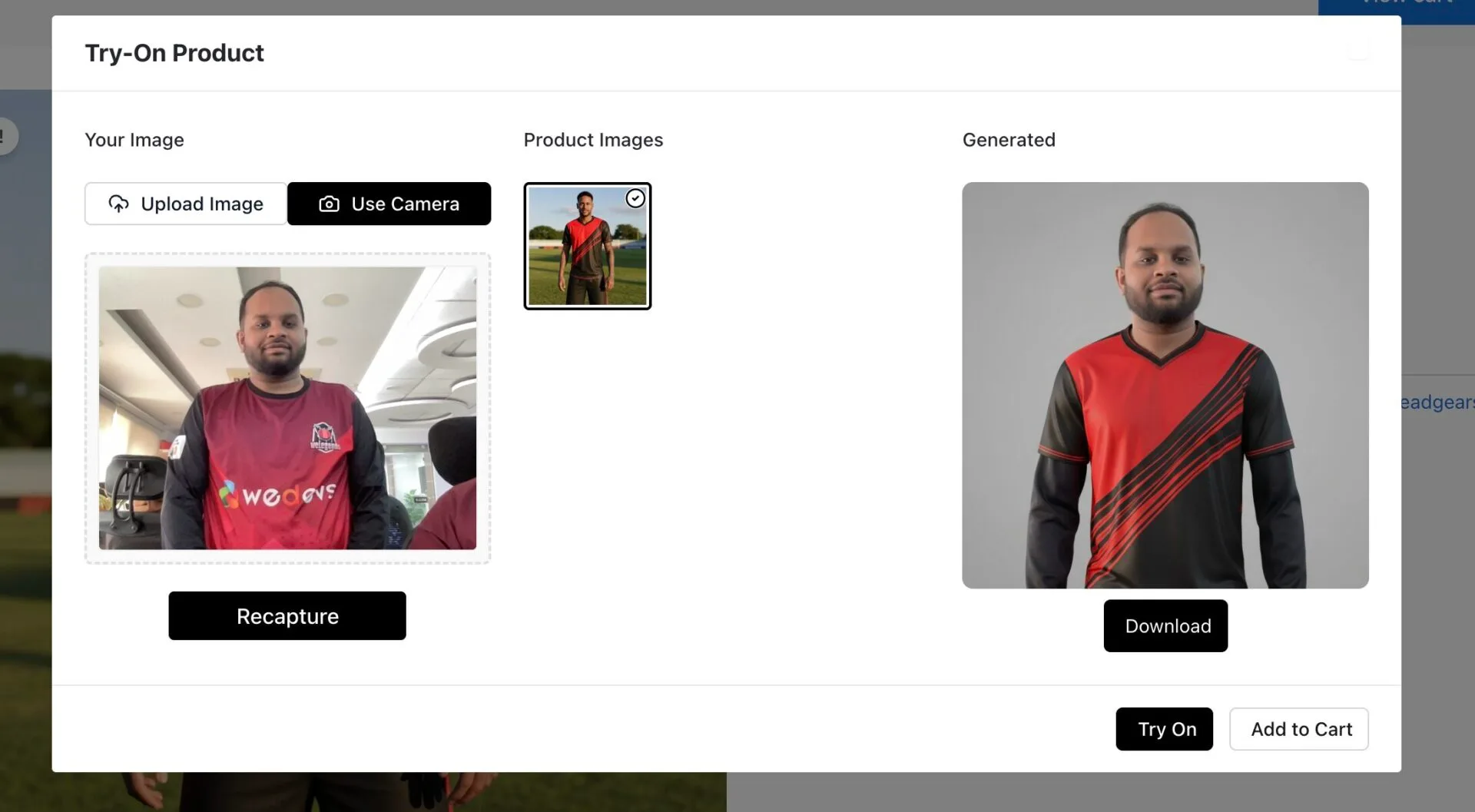
If the customer likes the result, they can directly add the product to the cart from the pop-up.
This is how you can use the Try On for a product feature of Try Aura.