

Troubleshooting and FAQs
This guide answers the most common questions about PocketStore, from app setup and publishing to push notifications, social login, licensing, and post-launch management.
If you’re experiencing an issue, use the section headings below to quickly find the relevant troubleshooting steps. Most problems can be resolved by checking your configuration settings, credentials, or feature setup.
If you cannot find a solution in this guide, contact our team from your StorePulse account so the team can assist you more quickly.
Before the App Is Built
Section titled “Before the App Is Built”How long does it take to build and publish my app?
Section titled “How long does it take to build and publish my app?”Typically it takes us 7 working days once we receive the fully completed Build Request Form. Not giving complete information might cause delays. We recommend you first prepare all the requirements during filling out the Build Request Form.
I submitted the Build Request Form but haven’t heard back. What should I do?
Section titled “I submitted the Build Request Form but haven’t heard back. What should I do?”Please feel free to create a ticket. Our team will get back to you with your request.
Can I change my app name or icon after submitting the form?
Section titled “Can I change my app name or icon after submitting the form?”Yes, but do let our team know before the build starts. Changes requested after the build is underway may delay your go-live date.
Do I need all five social login providers?
Section titled “Do I need all five social login providers?”No. Social login providers are optional, with one exception. If your app includes any social login on iOS (Facebook, Google, Twitter, or LinkedIn), Apple Sign-In must also be configured. Apple requires it. Google Login is strongly recommended. Facebook, Twitter, and LinkedIn are optional.
Can I skip social login entirely?
Section titled “Can I skip social login entirely?”Yes. Social login is optional. Your customers will be able to log in with their email address and password.
License Issues
Section titled “License Issues”My license status shows as invalid or expired.
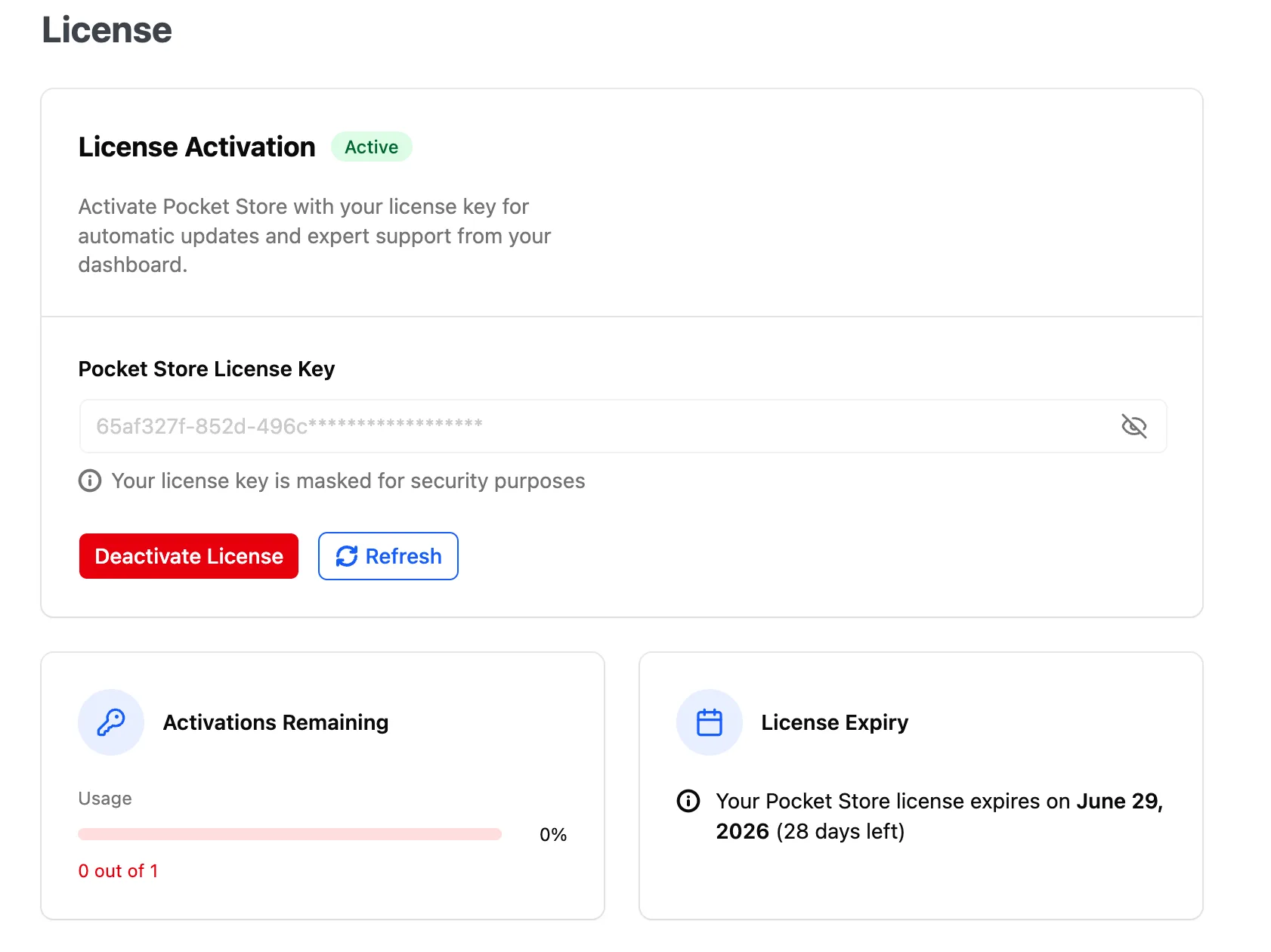
Section titled “My license status shows as invalid or expired.”Go to App Bridge > License and click Refresh. If the status still shows invalid, check that the license key in storepulse.co > My Account > Downloads matches the key entered on the License page. Contact support if the issue continues.
How many sites can I install AppBridge on?
Section titled “How many sites can I install AppBridge on?”Each AppBridge license is tied to a single mobile app project.
If you purchase AppBridge for a specific brand, the license can be used for that brand’s mobile app. If you create a separate mobile app for another brand, you will need an additional license.
Likewise, if you choose to publish only a standalone Android app or only a standalone iOS app, a separate license may be required depending on your purchase plan.
If you’re unsure which license applies to your setup, please contact our support team before purchasing or launching your app.
Push Notification Issues
Section titled “Push Notification Issues”Push notifications are not being delivered.
Section titled “Push notifications are not being delivered.”Check these two things. First, confirm your OneSignal credentials (App ID and REST API Key) are correctly entered under App Bridge > Push Notifications > Configuration. Second, verify your OneSignal app has both Android (Firebase) and iOS (APNs, Apple Push Notification service) platforms configured inside the OneSignal dashboard.
A specific event notification is not sending.
Section titled “A specific event notification is not sending.”Go to App Bridge > Push Notifications > Events. Find the event in question and confirm the toggle is on. Make sure your credentials are saved on the Configuration tab.
Social Login Issues
Section titled “Social Login Issues”Facebook Login is showing an error for users.
Section titled “Facebook Login is showing an error for users.”Two things to check. First, confirm the Facebook app status is set to Live (not In Development) in the Facebook Developer portal. Second, confirm the App ID and Client Token entered in AppBridge match the Facebook app exactly.
Apple Sign-In is not working on iOS.
Section titled “Apple Sign-In is not working on iOS.”Confirm all four credentials are entered correctly under App Bridge > Pocket Store > Social Login: Service ID, Team ID, Key ID, and Key Content. The Key Content must include the full -----BEGIN PRIVATE KEY----- and -----END PRIVATE KEY----- lines. Also check that you have not revoked the .p8 key in the Apple Developer portal.
App Store Issues
Section titled “App Store Issues”My app was rejected by Apple or Google.
Section titled “My app was rejected by Apple or Google.”Contact the StorePulse team with the rejection reason and the full rejection message. Common causes include: a missing or inaccessible privacy policy URL (make sure the URL is live and publicly accessible), Apple Sign-In not configured, and missing age rating information.
Post-Launch Changes
Section titled “Post-Launch Changes”Can I update my home screen banners myself?
Section titled “Can I update my home screen banners myself?”Yes. Go to App Bridge > Sliders. See How To Add App Slider Image for details.
Can I send a push notification to my customers myself?
Section titled “Can I send a push notification to my customers myself?”Yes. Go to App Bridge > Push Notifications > Send Notifications. See How to Send a Manual Push Notification for details.
I want to change my button colors. Do I need a rebuild?
Section titled “I want to change my button colors. Do I need a rebuild?”No. Go to App Bridge > General > Button Colors. Changes apply to the live app immediately.
What does PocketStore Care include?
Section titled “What does PocketStore Care include?”In the PocketStore Care package, we handle everything from start to finish. Please contact us at support@storepulse.co to discuss PocketStore Care features.