

How to Configure Gemini API key
To generate product images, videos, and enable virtual try-ons, TryAura needs to connect to Gemini using your API key.
The API key gives TryAura access to latest Gemini models for image & video generation.
Let’s have a look into how you can configure Gemini API Key in TryAura!
Getting Your Gemini API
Section titled “Getting Your Gemini API”Make sure you already have a Gemini API key from your Google account. If you do not have one yet, create it first and keep it ready. Here’s how to create your Gemini API key.
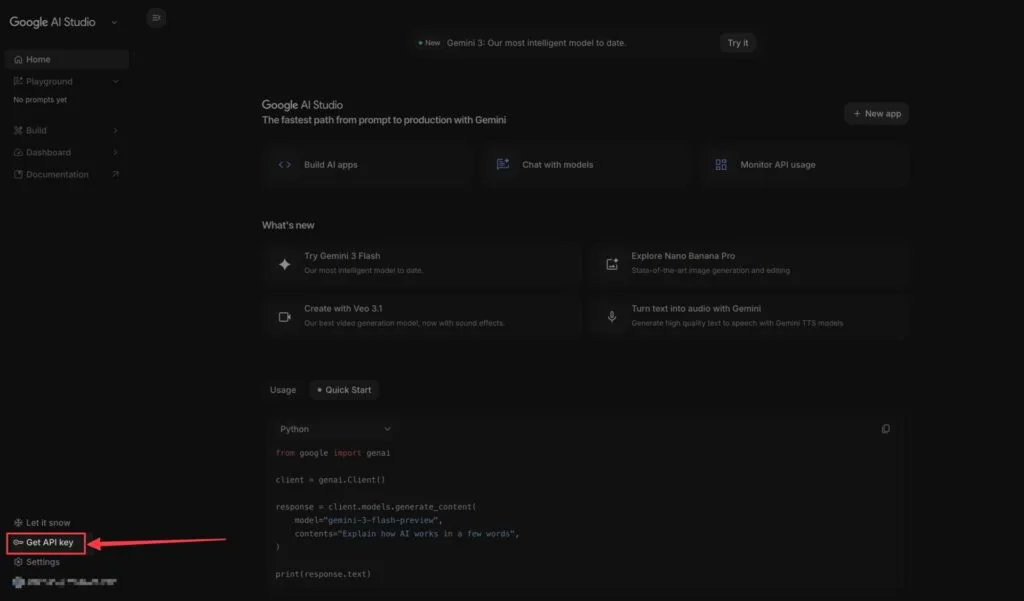
Visit Google AI Studio and click on Get API key.
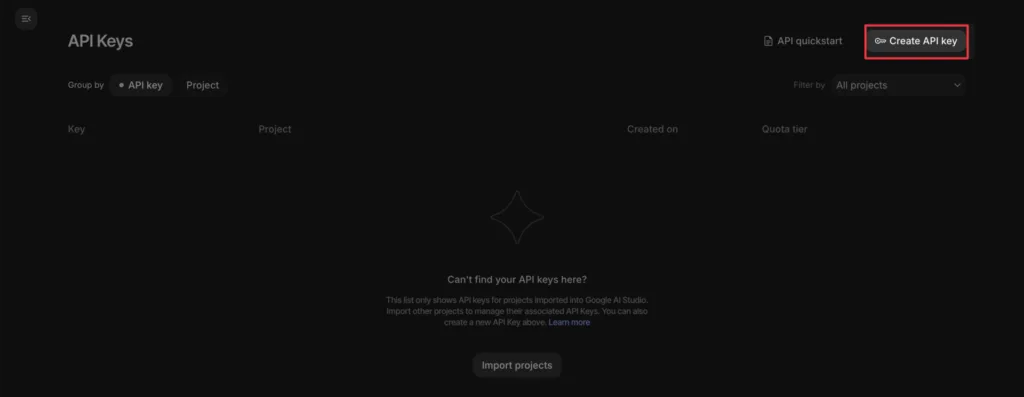
Click on Create API Key.
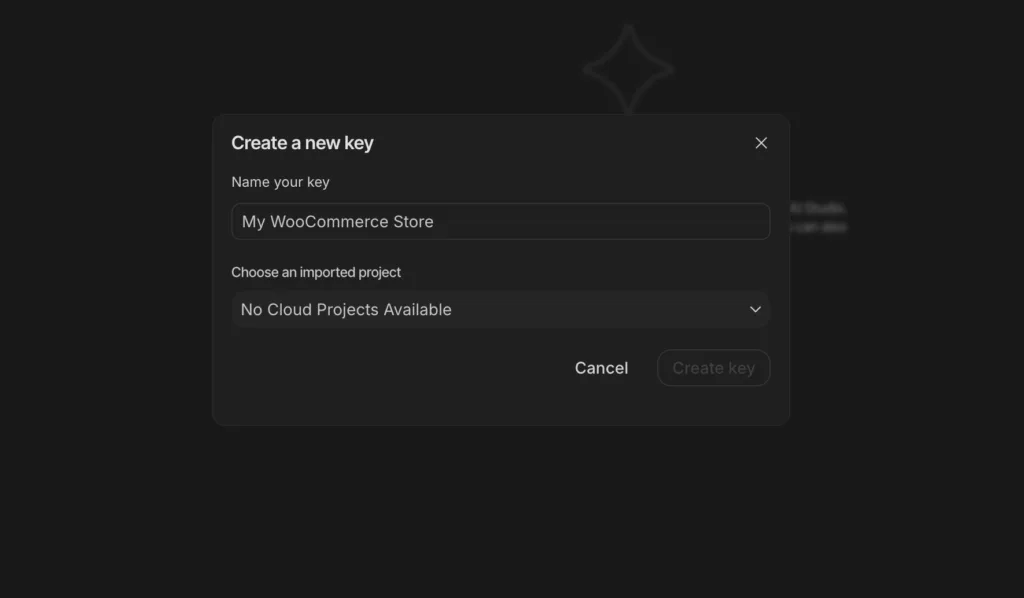
Now, this modal will appear. Give your key a name that you can easily remember, and choose your project. In case you don’t have a project, you have to create one.
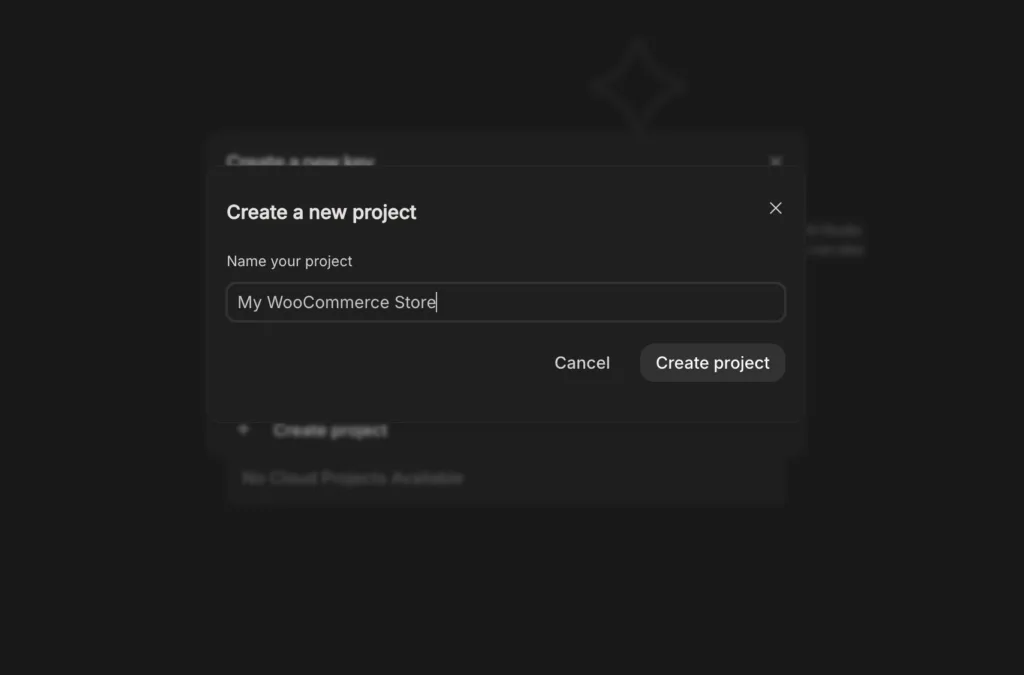
Give your project a name, and then click on Create Project.
Once you have created a project, you will be redirected to your dashboard. Click on Copy API key.
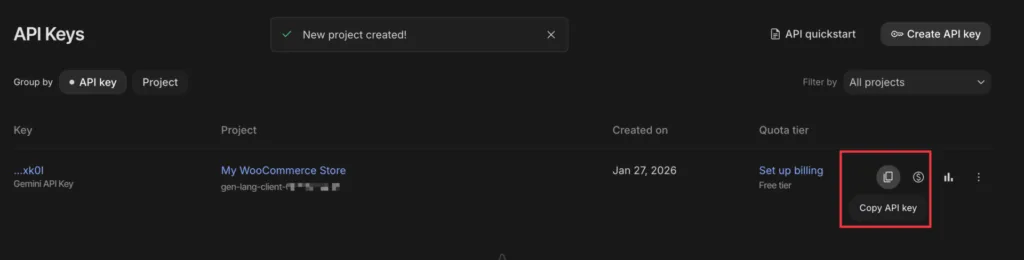
During this step, ensure that your API billing is active in the Google Cloud Console. This will let you use Nano Banana Pro, VEO 3, and other next-gen models.
How To Configure Gemini API Key in TryAura
Section titled “How To Configure Gemini API Key in TryAura”Now that you have the Gemini API key, you must add the key to TryAura. To do this, navigate to your WordPress admin panel, and visit TryAura > Settings.
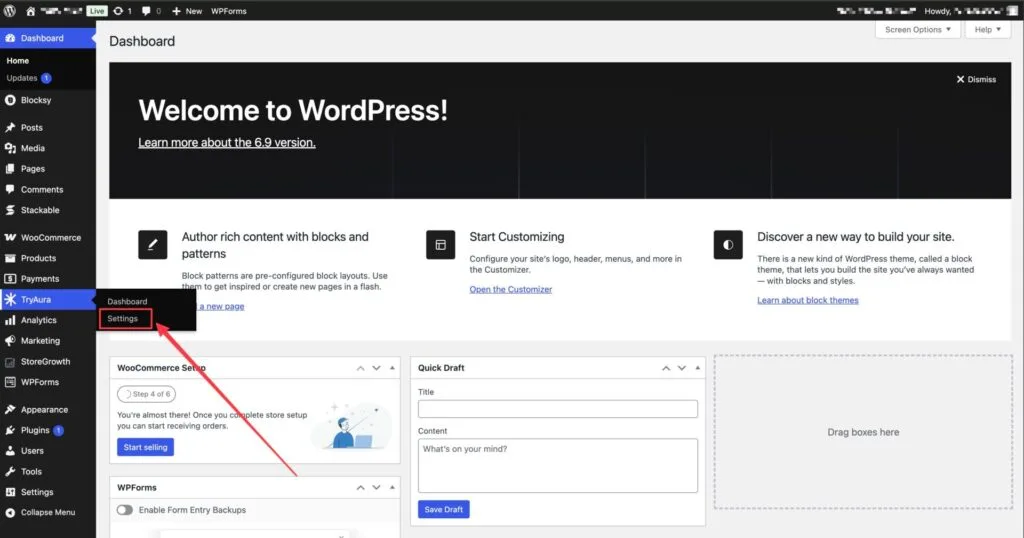
Clicking on TryAura Settings to Configure Gemini API Key
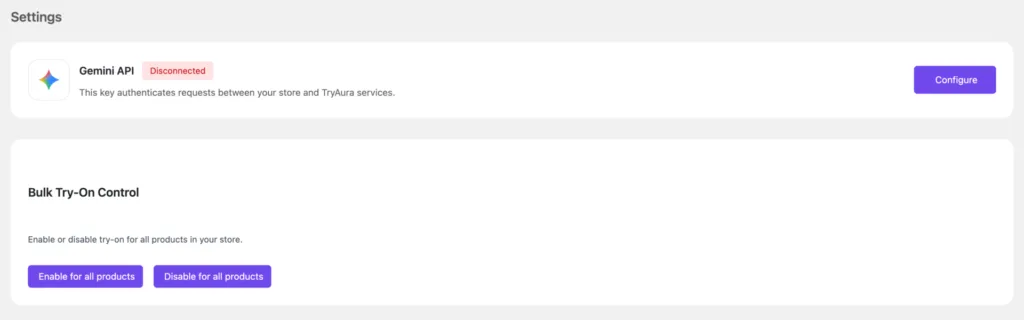
As you can see, Gemini shows disconnected. We need to click on Configure.
Now, you have to put in your API Key that you copied earlier.
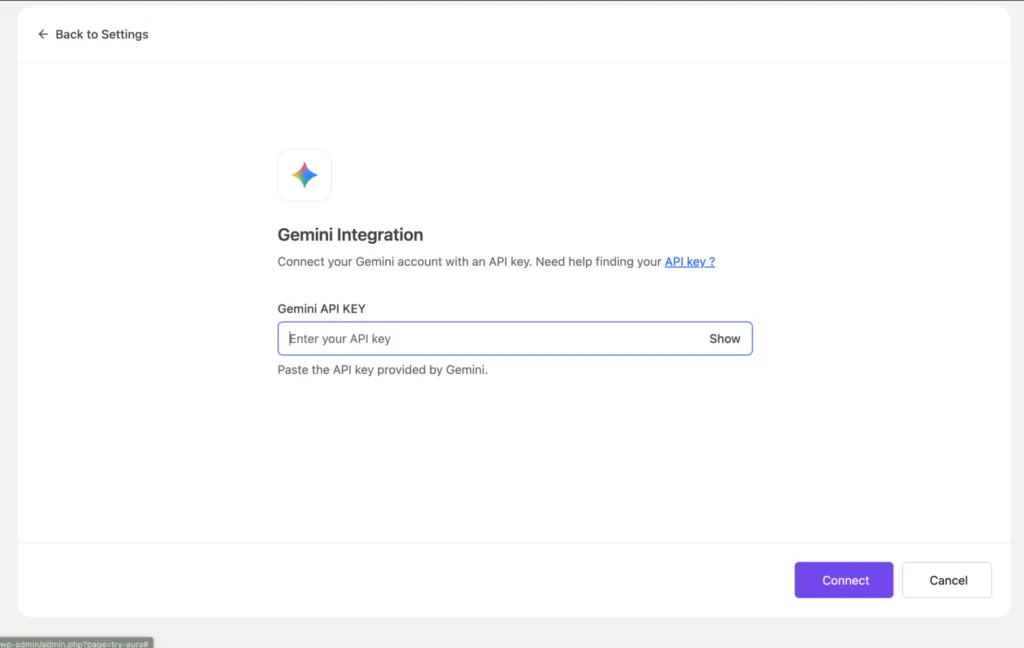
After putting your Gemini API key, you will be able to select the Image & Video model that you will be using. Click on Connect, and the key will now be connected to TryAura.
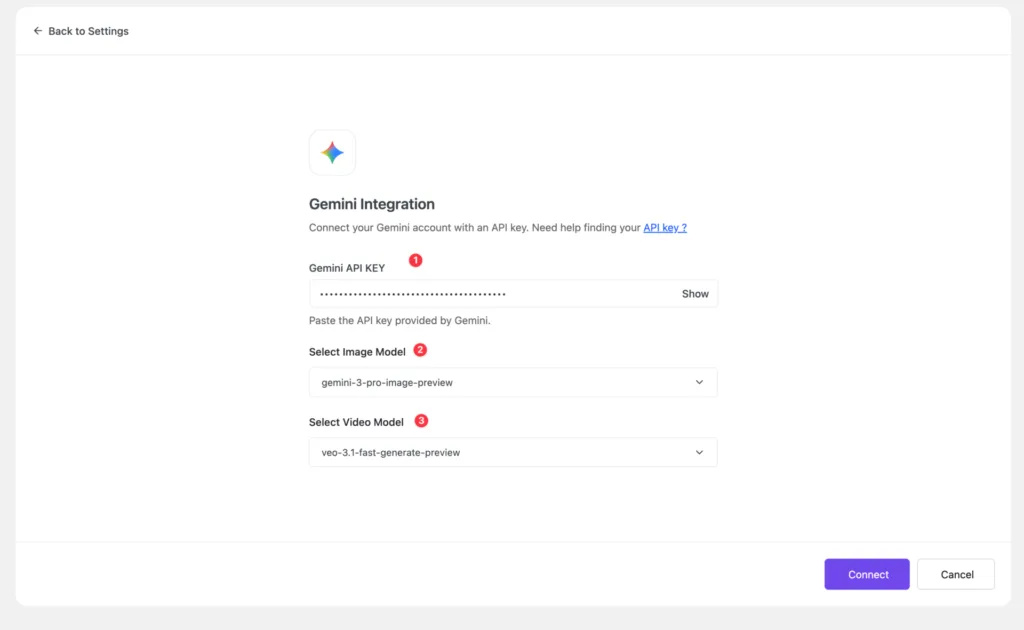
Note: Different Gemini models have different API pricing. Before selecting a model, review the associated costs to avoid unexpected usage charges.
This is how your TryAura settings page will look like once you have successfully connected your Gemini API key.
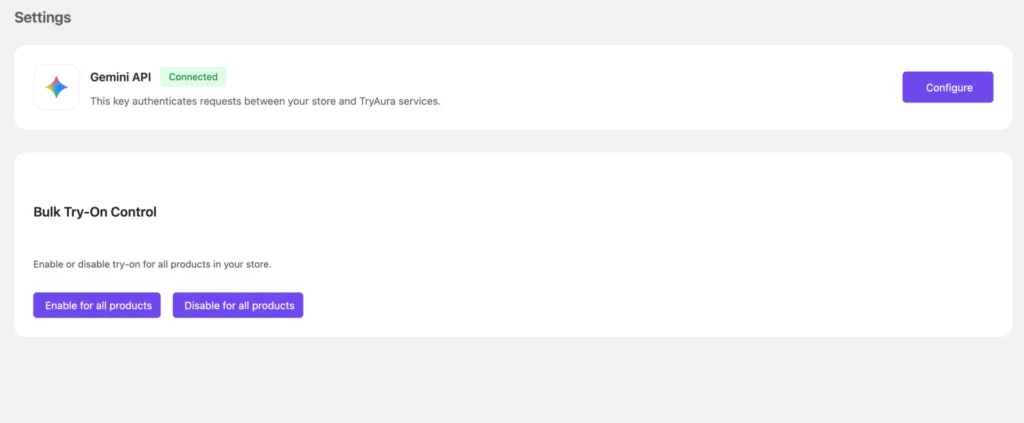
You’re all set 🎉. TryAura is now connected to Gemini and ready to generate product images, videos, and virtual try-ons for your store.