
How to Send a Manual Push Notification
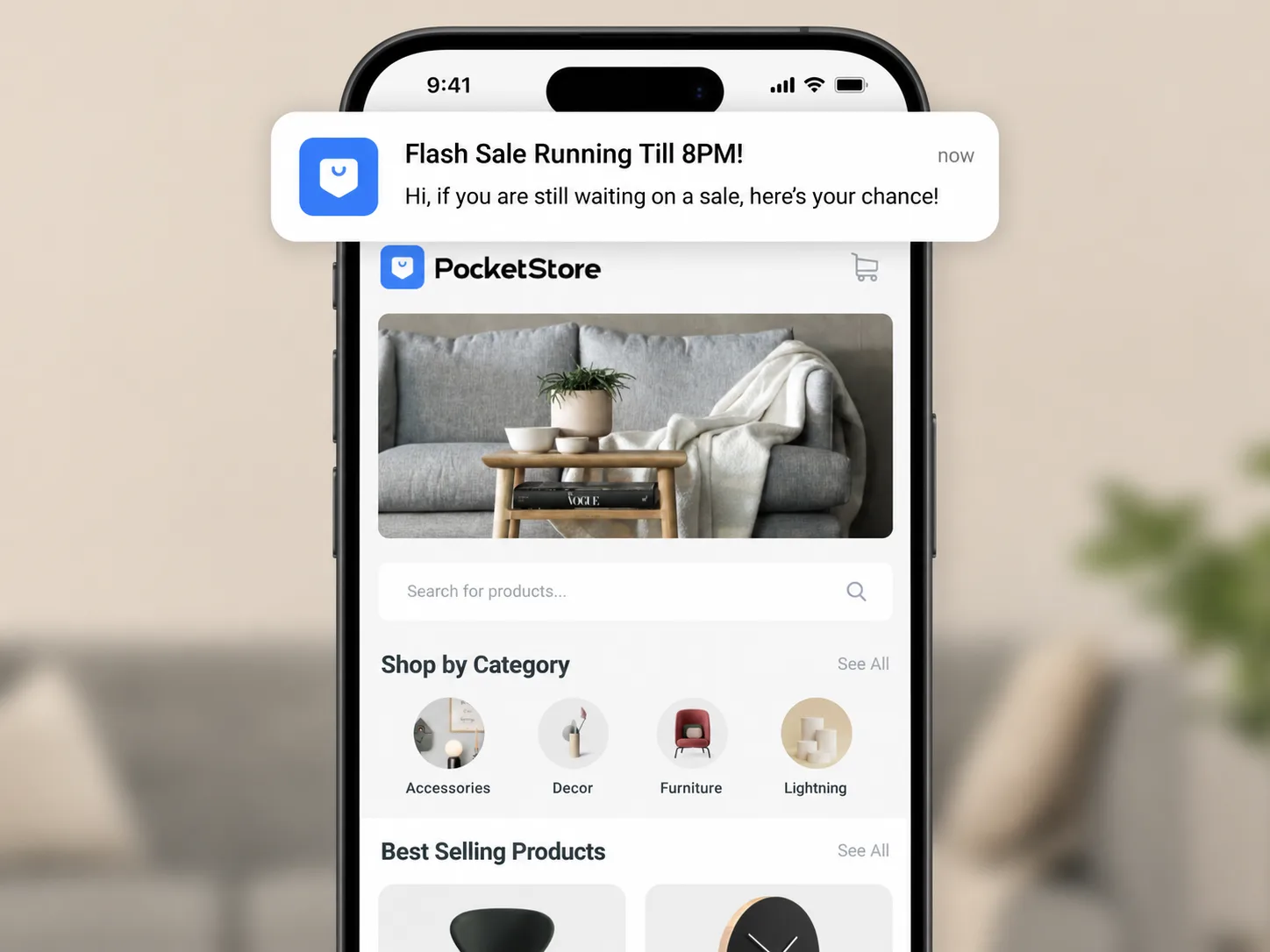
Push notifications help you reach customers instantly, even when they are not actively using your app. You can use manual push notifications to announce promotions, highlight new products, share important updates, or drive customers back to your store.
App Bridge makes it easy to send one-time notifications directly from your WordPress dashboard. This guide will show you how to create a campaign, choose your audience, customize the message, and deliver notifications to your app users in just a few clicks.
Note: For this to work, you need to configure your OneSignal credentials. Please refer to our documentation on setting up OneSignal account for further help.
In WordPress Admin, go to App Bridge > Push Notifications > Send Notifications.
Choose your audience. Select specific users by name or email, or choose a WordPress role (for example: all customers).
Enter a title and message. Both are required.
Click Send Notification. The notification is delivered to your chosen audience immediately.
What Should You Send?
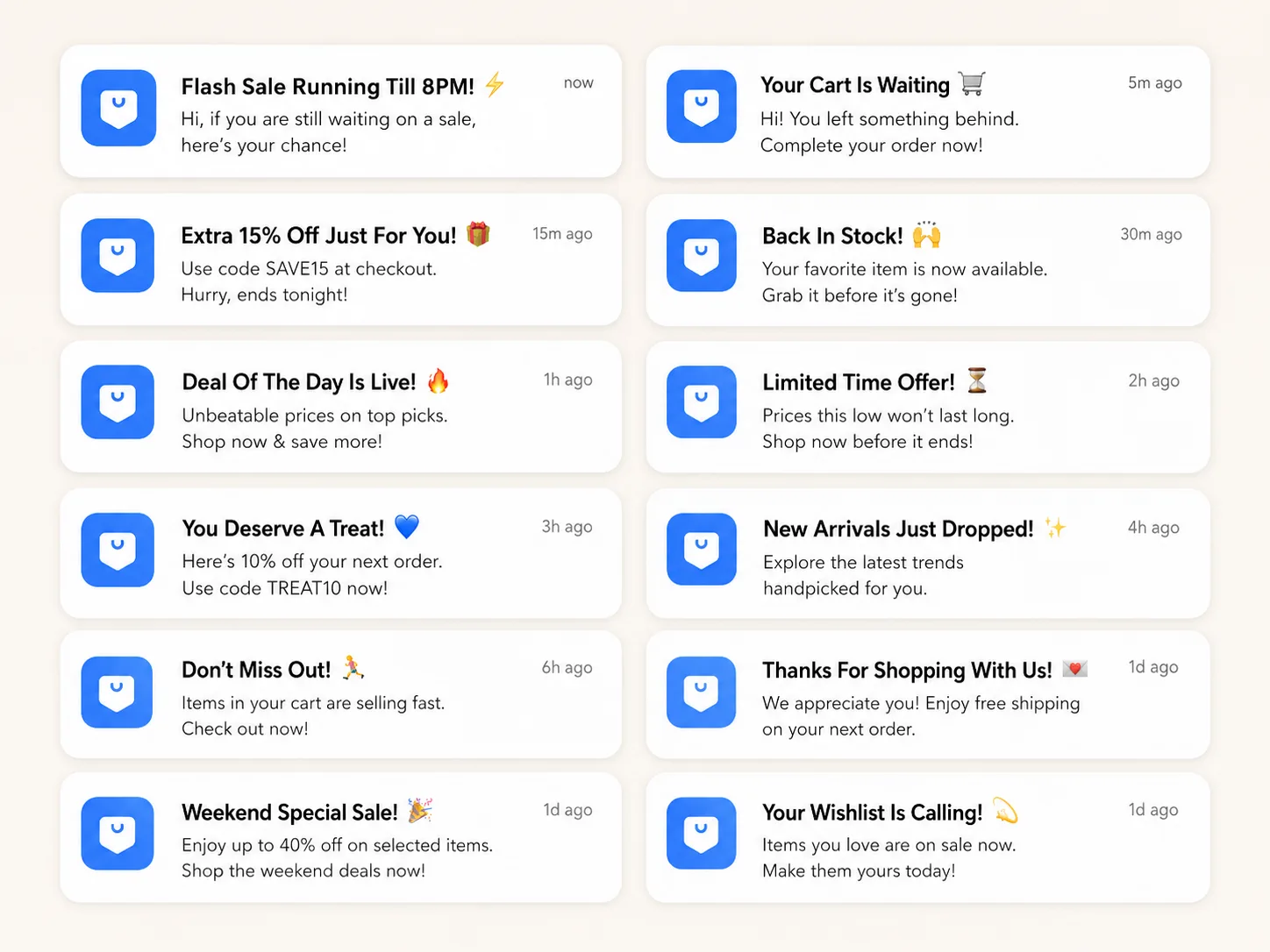
Section titled “What Should You Send?”Manual push notifications are best used for announcements that require immediate attention or encourage customers to return to your store. Common examples include flash sales, coupon codes, back-in-stock alerts, new product launches, and seasonal promotions.
For the best results, keep your messages short, clear, and action-oriented.
Tip: Avoid sending too many notifications in a short period. Well-timed, relevant messages are more likely to drive engagement and sales.