

How to Change Button Colors
The Button Colors section lets you control the primary button style used in your app. By updating these colors, you can keep your app aligned with your brand and make the interface feel more consistent.
Before you begin, make sure you know the hex color codes you want to use for your app buttons. If you are matching your website or brand guide, keep those values ready before you start.
Step 1: Open the Button Colors Settings
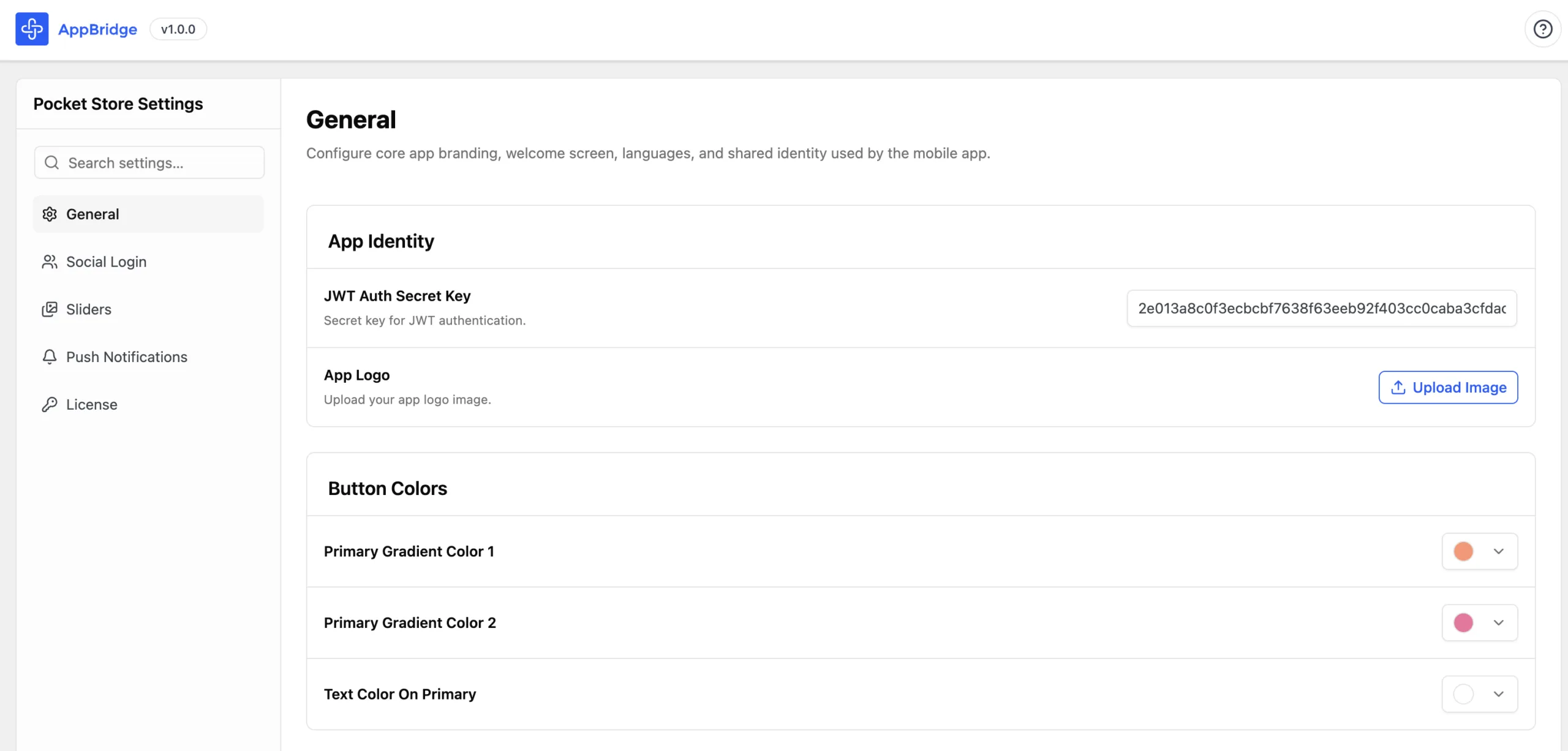
Section titled “Step 1: Open the Button Colors Settings”In WP Admin, go to App Bridge > General > Button Colors
Step 2: Update the Button Color Fields
Section titled “Step 2: Update the Button Color Fields”The Button Colors section controls your app’s primary button gradient.
Update the following fields:
- Primary Gradient Color 1
- Primary Gradient Color 2
- Text Color On Primary
Once saved, your app will use the new button colors right away.
Save your new colors to see them in the live app immediately.